Blog
SuqMall Image Format Converter Tool Guide: Fast, Private, and Unlimited

Introduction
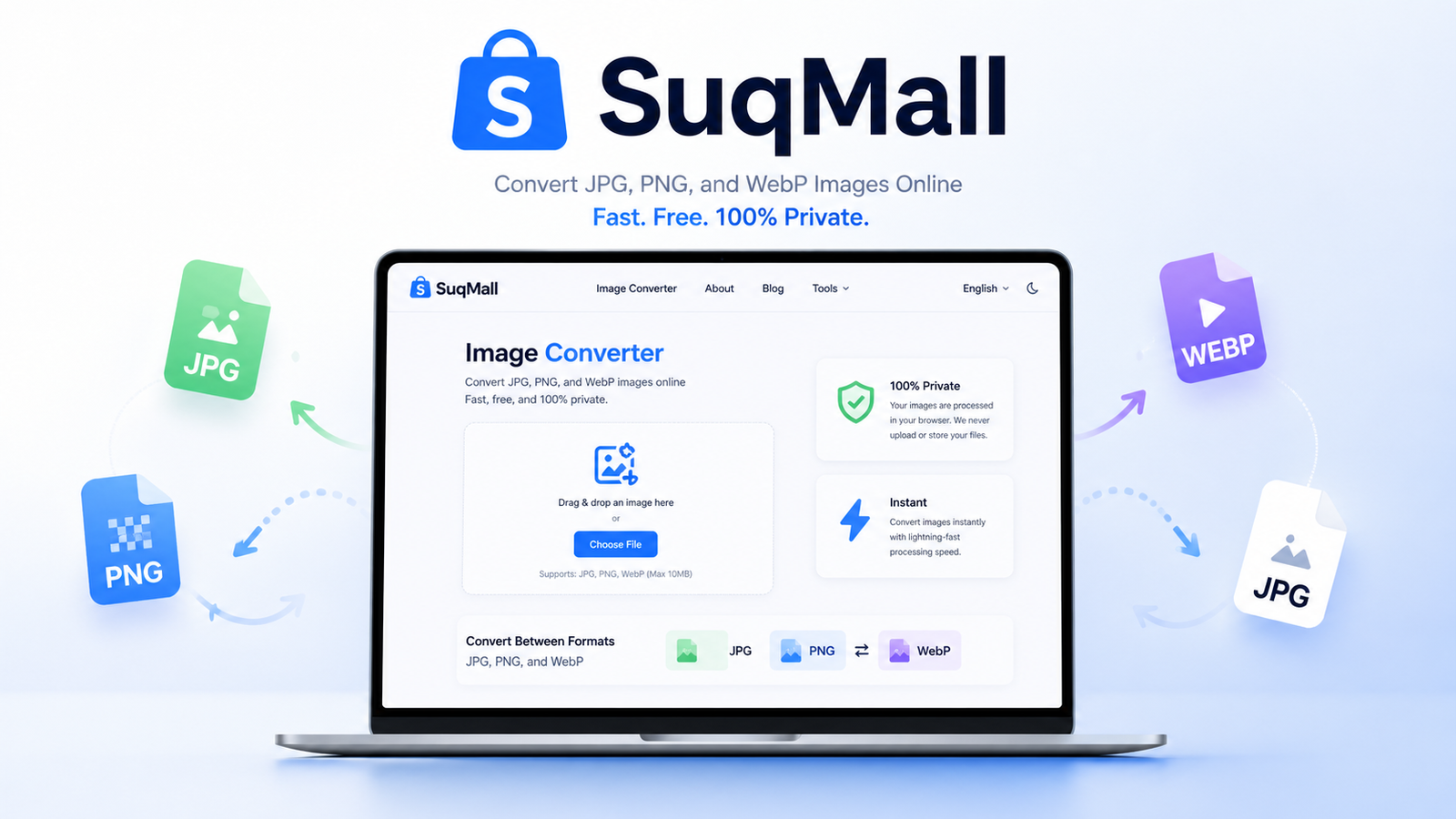
In today’s digital world, images are everywhere. From social media posts and e-commerce product listings to professional presentations and personal photo albums, we rely on visual content daily. However, one of the most common frustrations for users is image format incompatibility. You might have a beautiful photo in HEIC format from your iPhone, but your website only accepts JPG. Or perhaps you need a transparent PNG for a logo, but all you have is a white-background JPEG.
Traditionally, solving this meant downloading heavy software, paying for expensive subscriptions, or uploading your private photos to unknown servers that might store or sell your data.
Enter the SuqMall Image Format Converter.
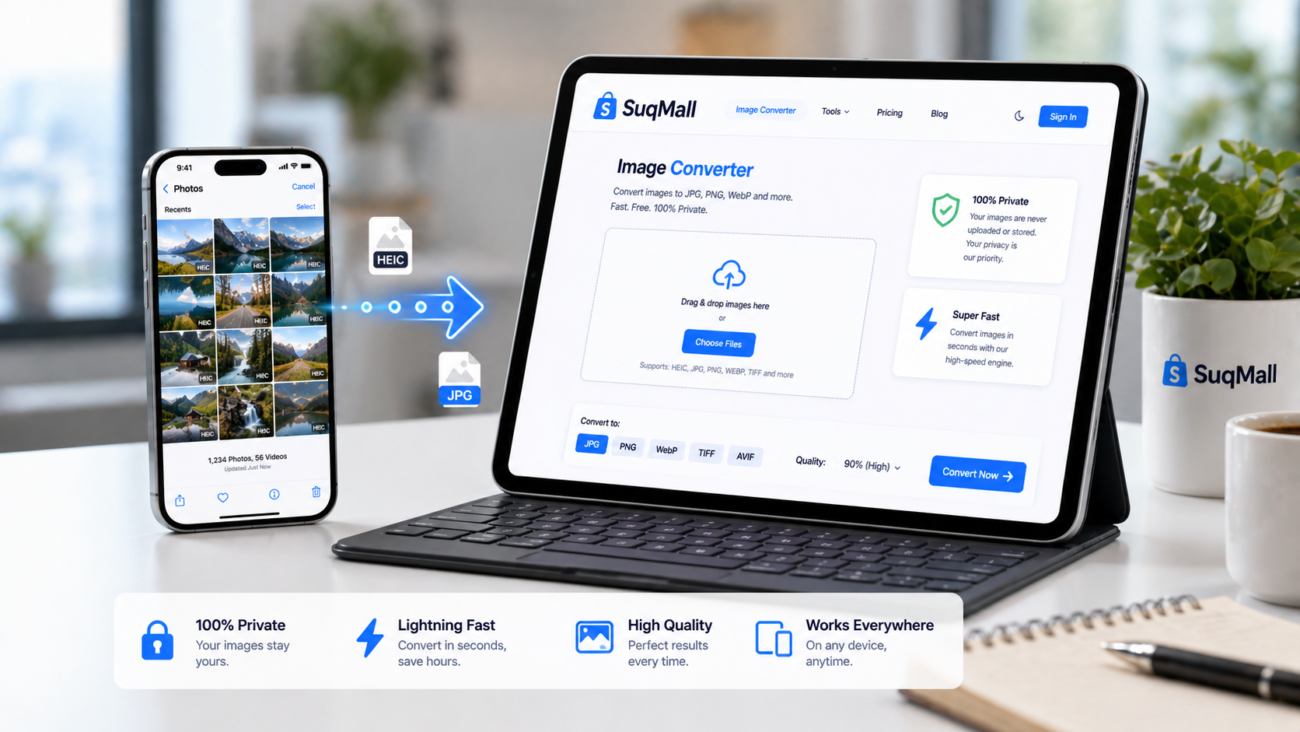
This is a 100% free, browser-based tool designed to solve these problems instantly. It allows you to convert images between major formats (JPG, PNG, WebP, GIF, BMP, TIFF, HEIC) directly in your web browser. There is no registration, no payment, and most importantly, no file uploads to external servers. Your privacy is guaranteed because the conversion happens locally on your device.
Whether you are a graphic designer, an online seller, a student, or just someone trying to share a photo with family, this guide will show you how to master this powerful tool to save time, protect your privacy, and optimize your workflow.
Key Features and Benefits
The SuqMall Image Format Converter is packed with features that rival paid software, yet it remains completely free. Here is a breakdown of what makes this tool stand out:
1. Multi-Format Support
- Feature: Supports input and output for JPG, JPEG, PNG, WebP, GIF, BMP, TIFF, TIF, HEIC, HEIF, SVG, and ICO.
- Benefit: You don’t need multiple tools for different tasks. Whether you are converting an iPhone HEIC photo to JPG for Windows compatibility or turning a PNG logo into a WebP for faster website loading, one tool handles it all.
2. 100% Browser-Based Privacy
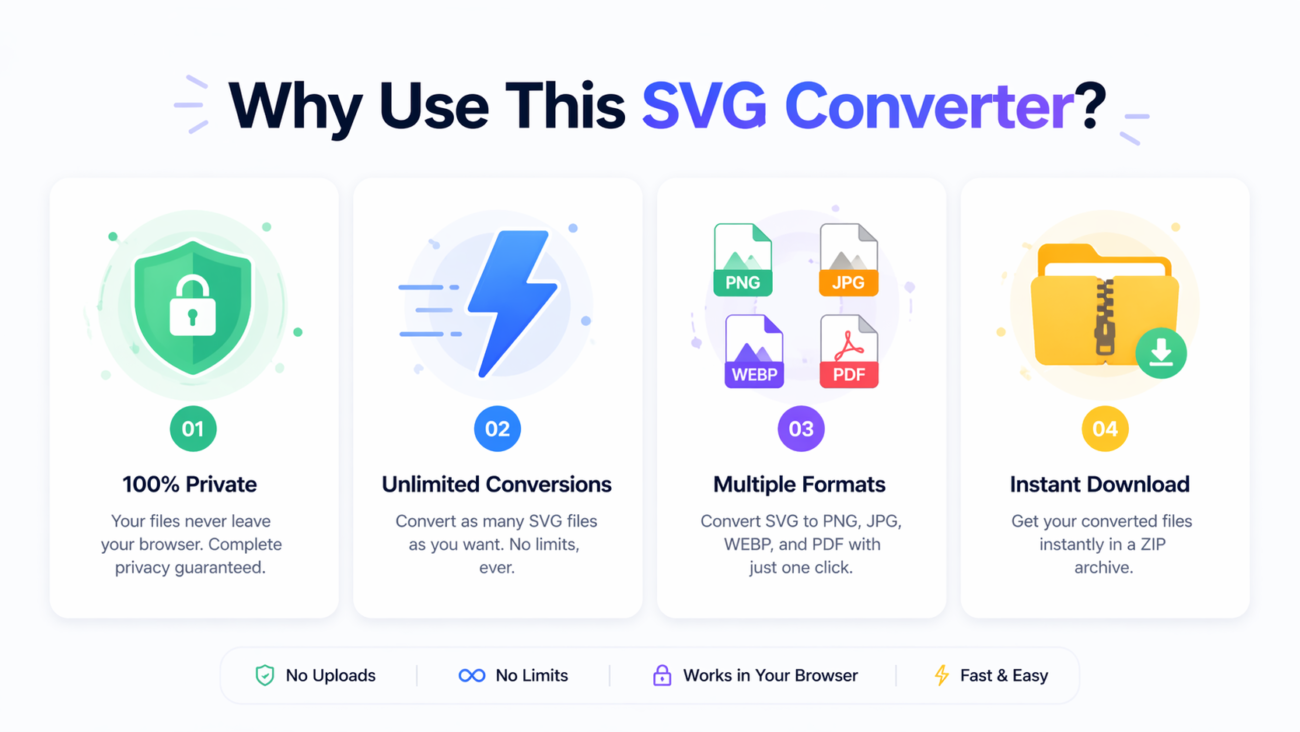
- Feature: All processing occurs locally using JavaScript and the HTML Canvas API. Files never leave your device.
- Benefit: This is crucial for sensitive documents, personal photos, or proprietary business assets. Unlike other “free” converters that upload your files to a cloud server, SuqMall ensures your data stays with you. Zero risk of data leaks.
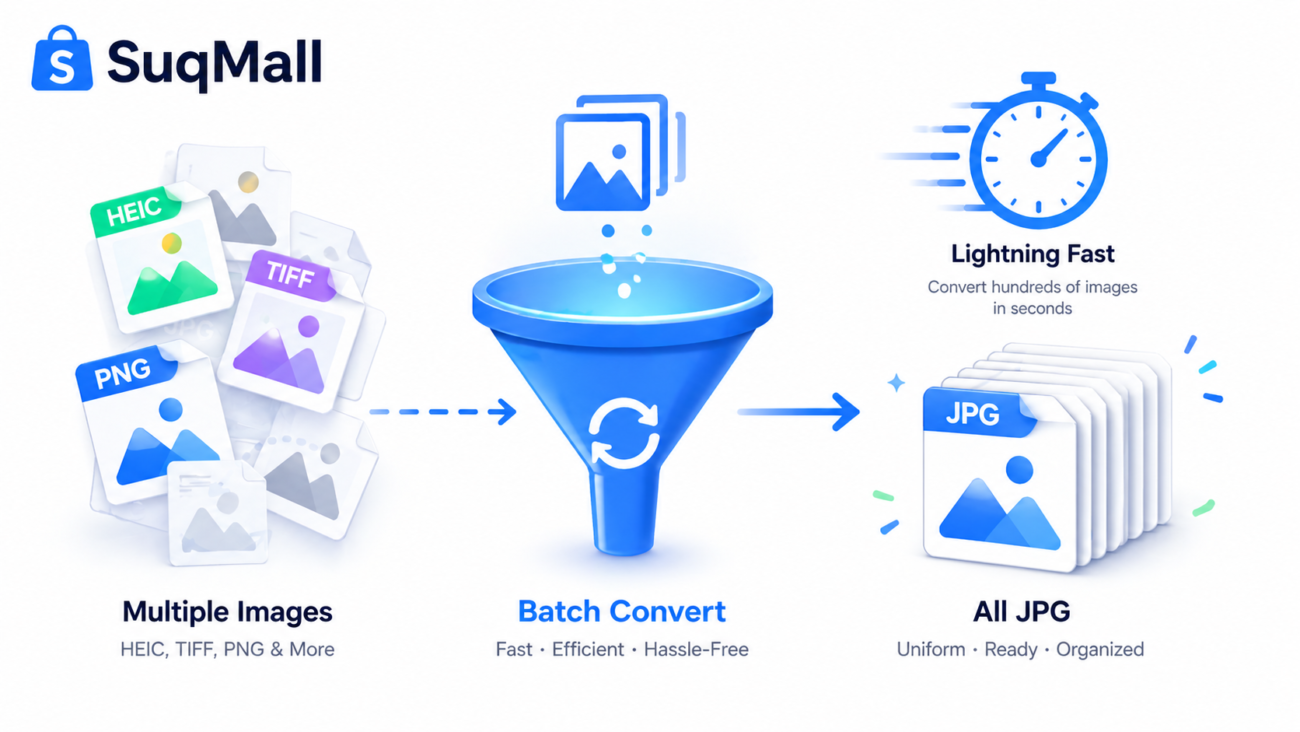
3. Batch Conversion Capability
- Feature: Upload and convert dozens of images simultaneously.
- Benefit: Saves hours of manual work. If you are an e-commerce seller needing to convert 50 product images from PNG to JPG, you can do it in seconds rather than clicking through each file individually.
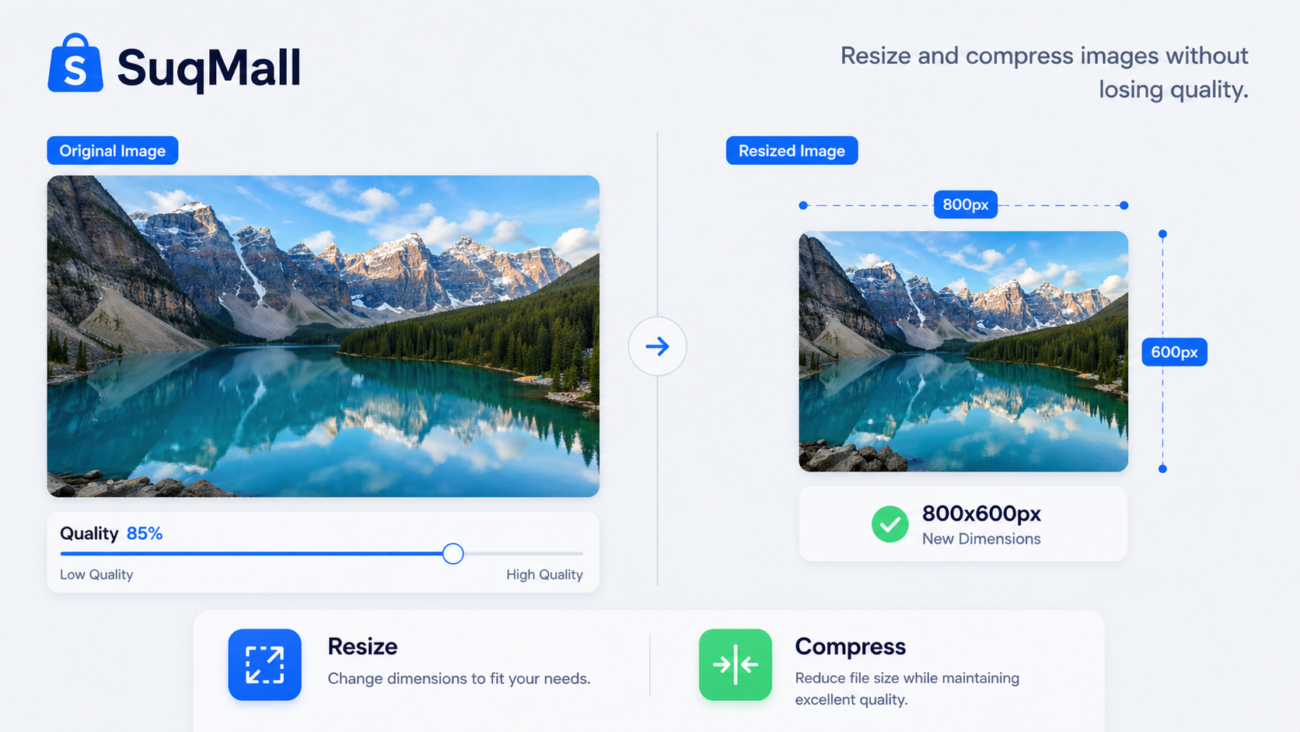
4. Quality and Compression Control
- Feature: Adjustable quality slider (10%–100%) for lossy formats like JPG and WebP.
- Benefit: Gives you control over the balance between file size and image clarity. Need a small file for email? Lower the quality. Need high-res for print? Keep it at 100%.
5. Image Resizing Options
- Feature: Option to resize images by width/height with an aspect ratio lock.
- Benefit: Eliminates the need for a separate resizing tool. Perfect for creating thumbnails, social media banners, or fitting images into specific website layouts without distortion.
6. Metadata (EXIF) Stripping
- Feature: Option to remove EXIF data (location, camera model, date) during conversion.
- Benefit: Enhances privacy when sharing photos online. By default, the tool strips this data to prevent accidental sharing of your GPS location or personal device information.
7. Transparency Preservation
- Feature: Maintains alpha channels for PNG and WebP formats.
- Benefit: Essential for designers. When converting logos or icons, the transparent background remains intact, ensuring your graphics look professional on any colored background.
Step-by-Step Guide: How to Use the Tool
Using the SuqMall Image Format Converter is intuitive and requires no technical skills. Follow these steps for the best results.
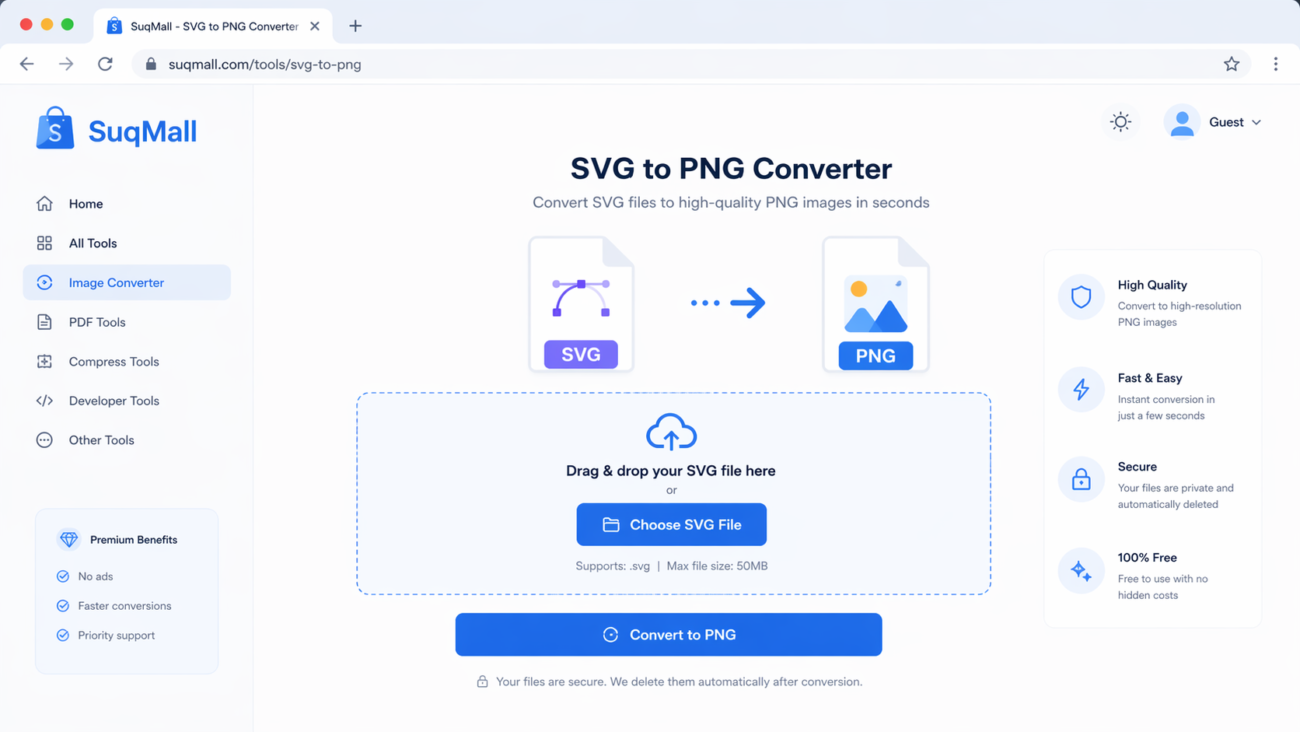
Step 1: Upload Your Images
- Navigate to the tool page.
- Click the “Choose Images” button or simply drag and drop your files into the upload zone.
- Tip: You can select multiple files at once by holding
Ctrl(Windows) orCmd(Mac) while selecting.
Step 2: Configure Settings
Before converting, adjust the settings panel to match your needs:
- Output Format: Select your desired format (e.g., PNG, JPG, WebP).
- Quality: If choosing JPG or WebP, use the slider to set quality. 85% is usually the sweet spot for web use.
- Resize: Enter a specific width or height if needed. Check “Lock aspect ratio” to prevent stretching.
- Privacy: Ensure “Remove EXIF/metadata” is checked if you are sharing photos publicly.
Step 3: Convert
- Click the “Convert All” button.
- Watch the progress bar as the tool processes each image. Since it runs in your browser, speed depends on your device’s processor, but it is typically instantaneous for standard images.
Step 4: Download
- Once complete, you can download files individually by clicking the download icon next to each image.
- For batch downloads, click “Download All (ZIP)” to get a single compressed folder containing all your converted images.
Best Practices & Common Mistakes to Avoid
- Avoid Over-Compression: Setting quality below 50% for JPGs often results in visible artifacts (blocky pixels). Stick to 70–90% for general use.
- Check Transparency: If you convert a PNG with transparency to JPG, the transparent areas will turn white. Always choose PNG or WebP if you need transparency.
- HEIC Limitations: While the tool supports HEIC input, ensure you have a stable internet connection initially to load the conversion library. After that, it works offline.
- File Size Limits: While there is no hard limit, extremely large files (over 50MB) may slow down your browser. Consider resizing them first if they are massive raw files.
Real-World Examples and Use Cases
To understand the practical value of this tool, let’s look at three common scenarios:
Case 1: The E-Commerce Seller
Situation: Sarah sells handmade jewelry on Etsy. She takes photos with her iPhone, which saves them in HEIC format. Etsy requires JPG or PNG. She has 100 new products to list.
Solution: Sarah uses SuqMall’s batch converter. She drags all 100 HEIC files into the tool, selects “JPG” as the output, sets quality to 85%, and clicks convert. Within minutes, she has 100 optimized JPGs ready for upload, saving her hours of manual conversion.
Case 2: The Web Developer
Situation: Mark is optimizing a client’s website for speed. He notices the site loads slowly due to large PNG images. He wants to switch to WebP, which offers better compression.
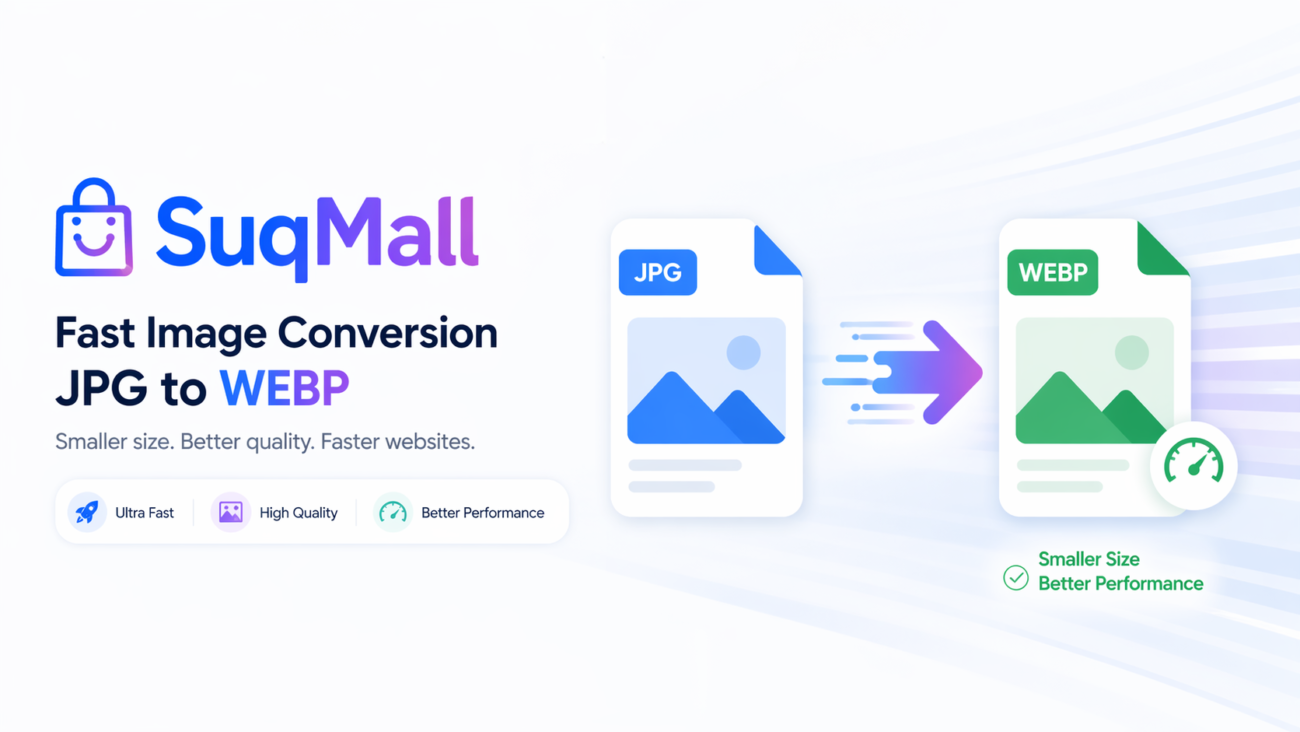
Solution: Mark uploads the PNG assets, selects “WebP” as the output, and adjusts the quality to 80%. He also enables resizing to create thumbnail versions. The result is a set of lightweight WebP images that improve the site’s Google PageSpeed score significantly.
Case 3: The Privacy-Conscious Traveler
Situation: Alex wants to share vacation photos on a public forum but is worried about exposing his home address via GPS metadata embedded in the photos.
Solution: Alex uploads his photos to SuqMall. He ensures the “Remove EXIF/metadata” option is checked. He converts them to JPG for universal compatibility. The downloaded files are clean, safe to share, and contain no location data.

Frequently Asked Questions (FAQ)
Is the SuqMall Image Converter really free?
Yes, it is 100% free. There are no hidden fees, no subscription plans, and no premium tiers. You can use it as much as you want without paying a cent.
Do I need to create an account?
No. We believe in frictionless utility. You can start converting immediately without registering, logging in, or providing an email address.
Are my images safe?
Absolutely. The tool uses client-side technology. Your images are processed in your browser’s memory and are never uploaded to our servers. When you close the tab, all data is wiped from your device’s temporary memory.
What formats can I convert to?
You can convert your images to PNG, JPG, WebP, GIF, and BMP. These are the most widely supported formats across all devices and platforms.
Can I convert HEIC files from my iPhone?
Yes. The tool includes specialized support for HEIC and HEIF files, allowing you to convert them to standard formats like JPG or PNG for use on Windows PCs or older devices.
Why is the conversion happening on my computer?
We prioritize your privacy and speed. By processing files locally, we eliminate server wait times and ensure your data never leaves your control. This also means the tool works even if your internet connection drops after the page loads.
Conclusion
The SuqMall Image Format Converter is more than just a utility; it is a essential tool for anyone who works with digital images. By combining speed, privacy, and versatility, it solves the everyday headaches of format incompatibility without compromising on security or cost.
Whether you are optimizing images for the web, preparing files for print, or simply sharing memories with friends, this tool provides a seamless, professional-grade experience right in your browser.
Ready to simplify your workflow?
👉 [Try the SuqMall Image Format Converter Now] – No signup, no limits, just results.
Have you used the tool? Share your experience or tips in the comments below!