Blog
SuqMall Word Counter Tool Guide: The Ultimate Writing Companion

Introduction
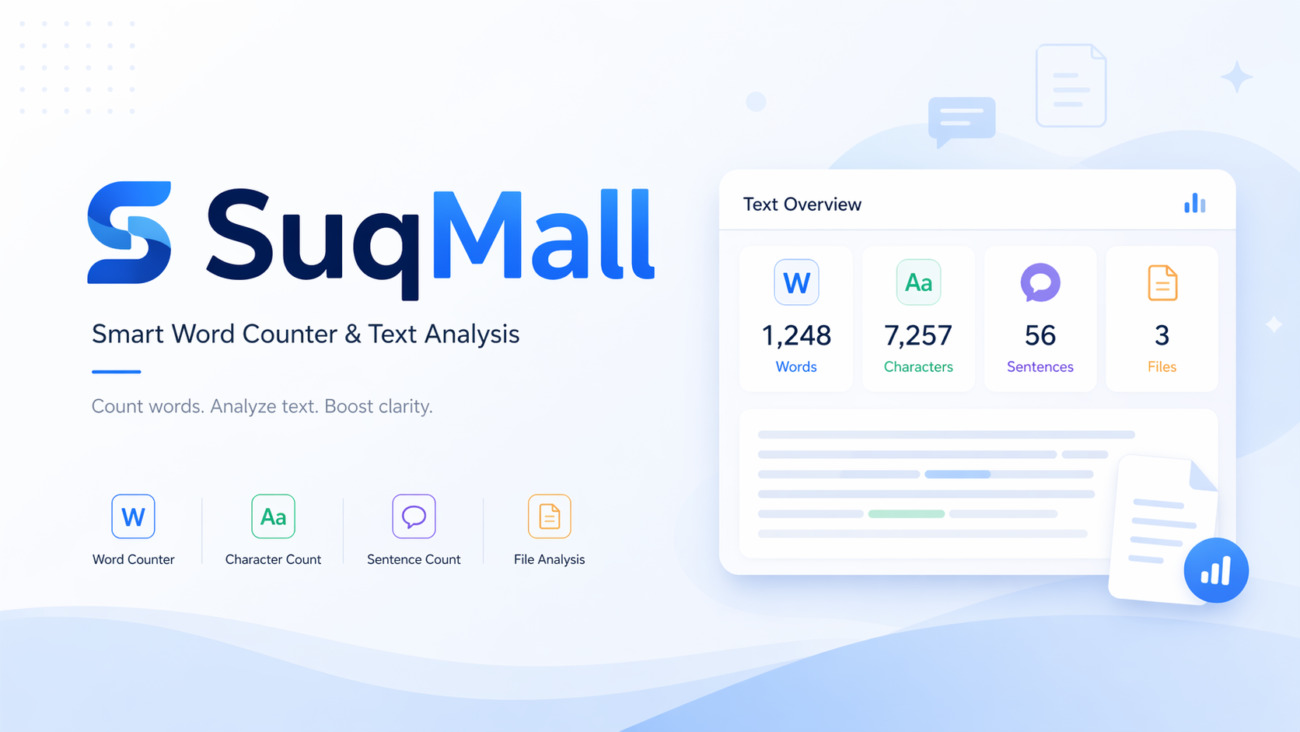
Whether you’re a student finalizing an essay, a blogger polishing a post, or an SEO specialist optimizing content, a reliable word counter is an essential tool. SuqMall’s free online word counter goes far beyond simply tallying words. It instantly analyzes your text and delivers detailed statistics, including character counts, sentence and paragraph numbers, reading time, speaking time, and even keyword frequency. Best of all, it’s completely free, requires no registration, and has no usage limits. In this guide, we’ll explore every feature of this powerful word counter, show you how to use it effectively, and explain why it’s the go‑to solution for writers, editors, and marketers alike.
Features and Benefits of SuqMall’s Word Counter
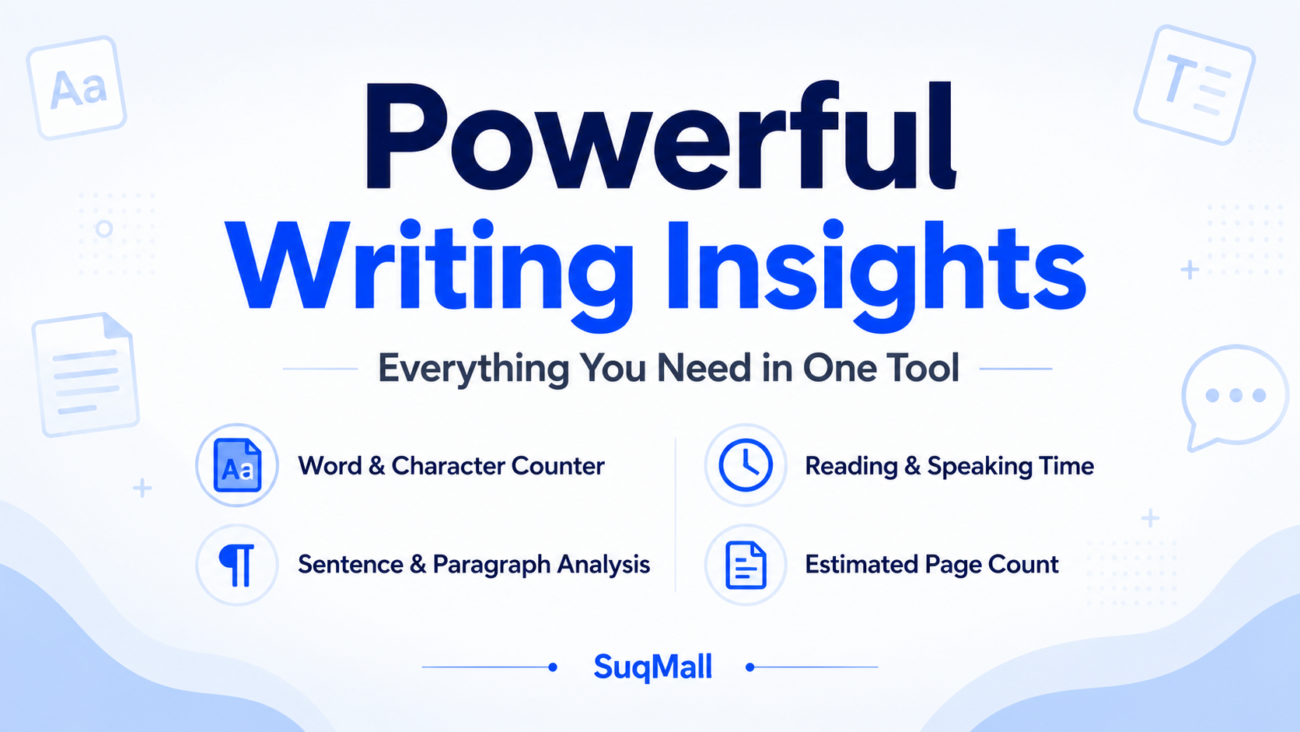
The tool packs a wide range of practical features into a clean, easy‑to‑use interface. Here’s what you can do with it, and why each capability matters.
- Live Word Count
Instantly see the total number of words as you type or paste.
Benefit: Never exceed a word limit or fall short. Perfect for essays, articles, and social media posts. - Character Counter (with and without spaces)
Track the exact number of characters, both including and excluding spaces.
Benefit: Essential for meta descriptions, title tags, and SMS messages that have strict character limits. - Sentence Counter
Know exactly how many sentences your text contains.
Benefit: Helps you assess readability and structure. Overly long sentences can lose readers; short ones may feel choppy. - Paragraph Counter
See the total number of paragraphs.
Benefit: Useful for formatting reports, blog posts, and academic papers where paragraph length matters. - Reading Time Estimator
Calculates how long it takes to read your text, based on an average of 200 words per minute.
Benefit: Helps you gauge whether your content respects your audience’s time. Most online readers prefer articles under 5 minutes. - Speaking Time Estimator
Estimates spoken duration at 130 words per minute.
Benefit: Ideal for preparing presentations, speeches, podcasts, and video scripts. You’ll know exactly how long your talk will be. - Estimated Pages
Translates word count into standard double‑spaced pages (250 words/page).
Benefit: Students and authors can easily see if they’ve met page‑count requirements. - Unique Word Counter
Counts distinct words after normalizing case.
Benefit: A high unique word count indicates richer vocabulary and original content, which search engines favor. - Average Words per Sentence
Displays the mean sentence length.
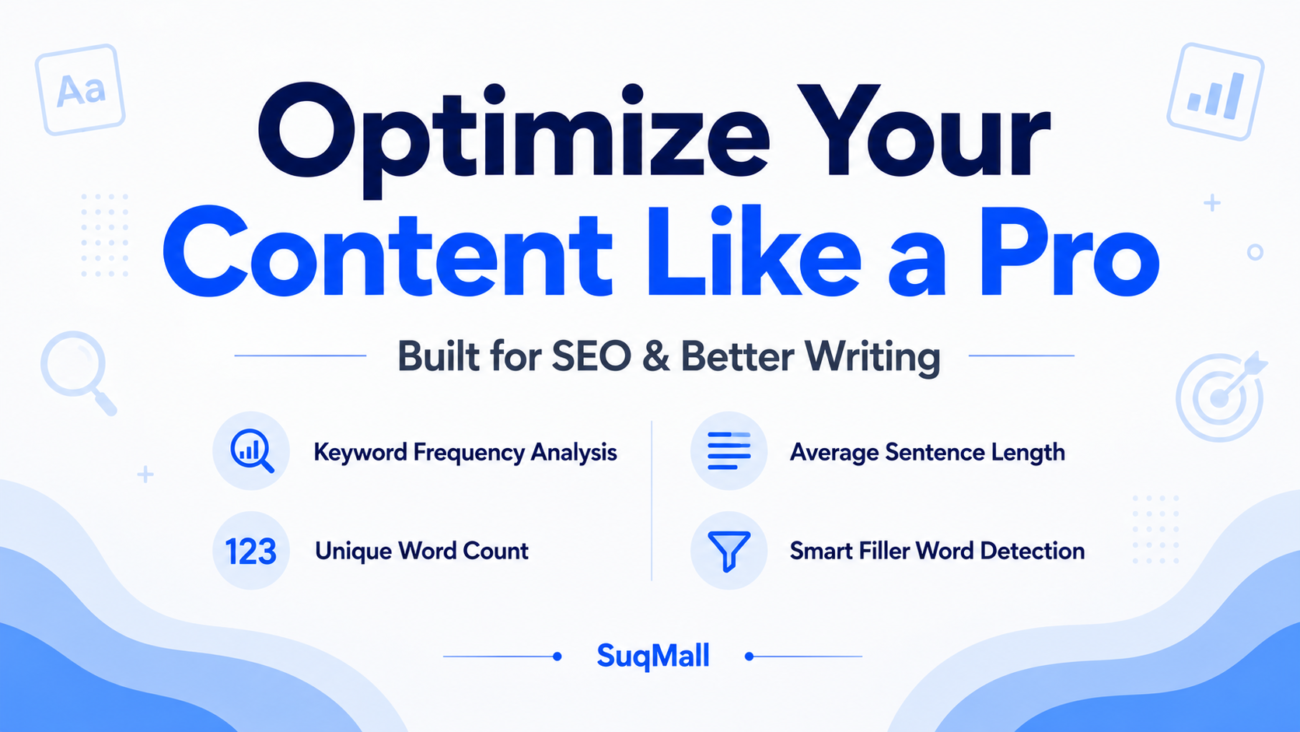
Benefit: An ideal average (15–20 words) improves readability. Too high, and your text becomes dense; too low, and it may seem simplistic. - Keyword Frequency Analysis (Top 20)
Lists the most frequently used words, excluding common stop words.
Benefit: Identify your primary keywords and avoid unintentional repetition. SEO specialists can optimize content density without stuffing. - Filler Word Detection
Automatically flags weak words like “very,” “really,” “just,” and “actually.”
Benefit: Strengthen your writing by cutting unnecessary filler. Editors and coaches can use this to give actionable feedback. - One‑Click Actions (Clear, Copy, Paste, Reset)
Four buttons let you clear all text, copy it to your clipboard, paste from the clipboard, or reset all statistics instantly.
Benefit: Saves time and reduces friction. No need to select text manually; everything is just a click away. - Real‑Time Updates
All metrics refresh as you type—no “count” button needed.
Benefit: The seamless experience encourages experimentation and immediate proof. - Mobile‑Friendly and Accessible Design
Works flawlessly on phones, tablets, and desktops. The interface meets accessibility standards with clear contrast, keyboard navigation, and screen‑reader support.
Benefit: Anyone, anywhere, can use the tool without barriers.
Step‑by‑Step Guide: How to Use the SuqMall Word Counter
Using the tool is straightforward. Follow these steps to get the most out of it:
- Open the SuqMall Word Counter page
You’ll find a large text area labeled “Enter or paste your text below.” - Add your content
Type directly or paste text from your document. You can also click the “Paste Text” button to pull text from your clipboard. - Watch the statistics update instantly
As soon as you input text, every card refreshes with the latest numbers. You’ll see word count, characters, sentences, reading time, and more update in real time. - Use the action buttons when needed
- Clear Text erases the text area and resets counts.
- Copy Text saves the entire content to your clipboard for use elsewhere.
- Paste Text inserts any previously copied text with one click.
- Reset All clears both the text and the statistics for a fresh start.
- Explore the keyword frequency table
Scroll down to see the top 20 keywords (excluding common words like “the” or “and”). Use the bar and percentage to spot overused terms. - Check filler word warnings
If the tool detects weak words, a yellow alert box appears below the table, listing the offenders. Replace them with stronger, more precise alternatives. - Adjust and optimize
Tweak your text and watch the numbers change. Use the reading time to trim long paragraphs, or use the page count to meet an assignment’s requirement.
Practical Tips and Best Practices:
- For SEO, aim for a keyword density of 1‑3% on your focus term. The keyword table helps you see if you’re balanced.
- Keep the average words per sentence around 15–20. If your average climbs above 25, break longer sentences into smaller ones.
- Use filler word detection as a final polish before publishing—removing fluff can dramatically increase impact.
- For video scripts, target a speaking time that fits your slot. Adjust the text until you land within the desired duration.
- If copying from Microsoft Word or Google Docs, paste directly into the text area to preserve formatting—or start from a plain text version to avoid invisible characters.
Common Mistakes to Avoid:
- Don’t rely solely on word count; check all metrics to ensure balance.
- Avoid ignoring filler warnings—they exist to strengthen your prose.
- Don’t forget to copy your final text after editing! Use the Copy button to avoid losing changes.
Examples and Use Cases
Let’s look at how different users benefit from the SuqMall word counter.
1. The Student Writing a Term Paper
Emma needs to submit a 2,000‑word essay with an estimated page count of 8 pages (double‑spaced). She pastes her draft into the tool. She sees she has 1,820 words and 7.3 estimated pages. The real‑time count helps her add exactly 180 more words to hit the requirement. She also checks the average sentence length—at 28 words, it’s too high—so she breaks several long sentences into two. Before submitting, she reviews the filler word alert and replaces three “very” adverbs with stronger adjectives.
2. The SEO Specialist Optimizing a Blog Post
David is writing a 1,200‑word article about sustainable gardening. He pastes his draft into the word counter. The keyword frequency table shows “garden” appears 24 times (2.0% density) and “plants” 18 times (1.5%), both fine. However, “sustainable” only appears 4 times. He edits the post to naturally mention “sustainable gardening” a few more times, then re‑checks the stats. The tool confirms a better balance without keyword stuffing. David also sees a filler warning for “really” and “just,” which he removes for a cleaner read.
3. The YouTuber Preparing a Script
Priya is scripting a product review video that needs to be exactly 3 minutes. She pastes her script into the tool. The speaking time estimator shows 4.2 minutes. She trims unnecessary examples and shortens a few sentences. After two rounds of editing, the speaking time drops to 3.1 minutes—perfect. She also uses the character counter to ensure her video description fits within YouTube’s limit.
4. The Editor Reviewing a Column
A newspaper editor receives a 750‑word column. He pastes it into the word counter. The reading time is 3.7 minutes—ideal for the publication’s quick‑read section. He notes the average sentence length is 22 words, so he advises the writer to vary sentence structure. The filler word flag catches three instances of “actually,” which he removes to tighten the prose.
5. The Marketing Team Collaborating on Ad Copy
A team drafts a Google Ads headline and description. They need to stay under 30 characters for one headline. The character counter (without spaces) instantly tells them the current length is 34. They reword and watch the number drop to 28. This fast feedback loop prevents ad disapprovals and saves time.

Frequently Asked Questions (FAQ)
How accurate is the word count?
The counter splits text on whitespace and counts non‑empty segments, so it’s highly accurate. Punctuation attached to a word doesn’t inflate the count—“hello” and “hello!” each count as one word.
Does this tool store or save my text?
No. Your text is analyzed only in your browser. Nothing is sent to any server or saved anywhere. Privacy is completely protected.
How is reading time calculated?
We use an average reading speed of 200 words per minute for English text. If you have very technical or dense content, the actual reading time may be slightly higher.
How is speaking time estimated?
Speaking time is based on 130 words per minute, a comfortable pace for presentations and podcasts. Adjust your content length to match your target duration.
What are stop words and why are they excluded from keyword frequency?
Stop words are common words like “the,” “and,” “is,” etc., that appear very frequently but carry little meaning. Excluding them makes the keyword list more useful for SEO and content analysis.
Why does the tool flag filler words?
Filler words like “very,” “really,” and “just” weaken your writing. By highlighting them, the tool helps you craft more direct, impactful sentences. It’s a smart editing assistant.
Can I use this word counter for SEO purposes?
Absolutely. The keyword frequency table and filler word detection are specifically designed to help you optimize content density and readability, both important for search engine ranking.
Is the tool really free?
Yes. SuqMall’s word counter is 100% free with no registration, no subscription, and no usage limits. You can use it as often as you like.
Does it work on mobile?
Yes. The responsive design ensures a smooth experience on smartphones and tablets, with large buttons and readable stats.
Do I need to install anything?
No installation is required. Simply visit the page and start typing or pasting your text.

Conclusion and Call to Action
SuqMall’s free online word counter is more than a simple tally. It’s a comprehensive writing companion that instantly reveals word and character counts, readability metrics, speaking time, and in‑depth keyword insights. Writers, students, editors, SEO professionals, and content creators can all use it to craft cleaner, more effective content—without spending a dime or creating an account.
The intuitive interface, real‑time feedback, and powerful analysis features make it an indispensable part of any digital toolkit. Whether you need to hit a precise word count, optimize a blog post for search engines, or prepare a speech that fits a time slot, this tool has you covered.
Give it a try today. Paste your latest draft into the SuqMall word counter and watch your writing transform into a clearer, more polished version of itself. And if you find it helpful, bookmark the page and share it with your friends, colleagues, or students. Great writing starts with clarity—and now you have the perfect tool to achieve it.