Blog
SuqMall QR Code Scanner Tool Guide: Scan QR Codes Instantly, Privately, and Without Registration

Introduction
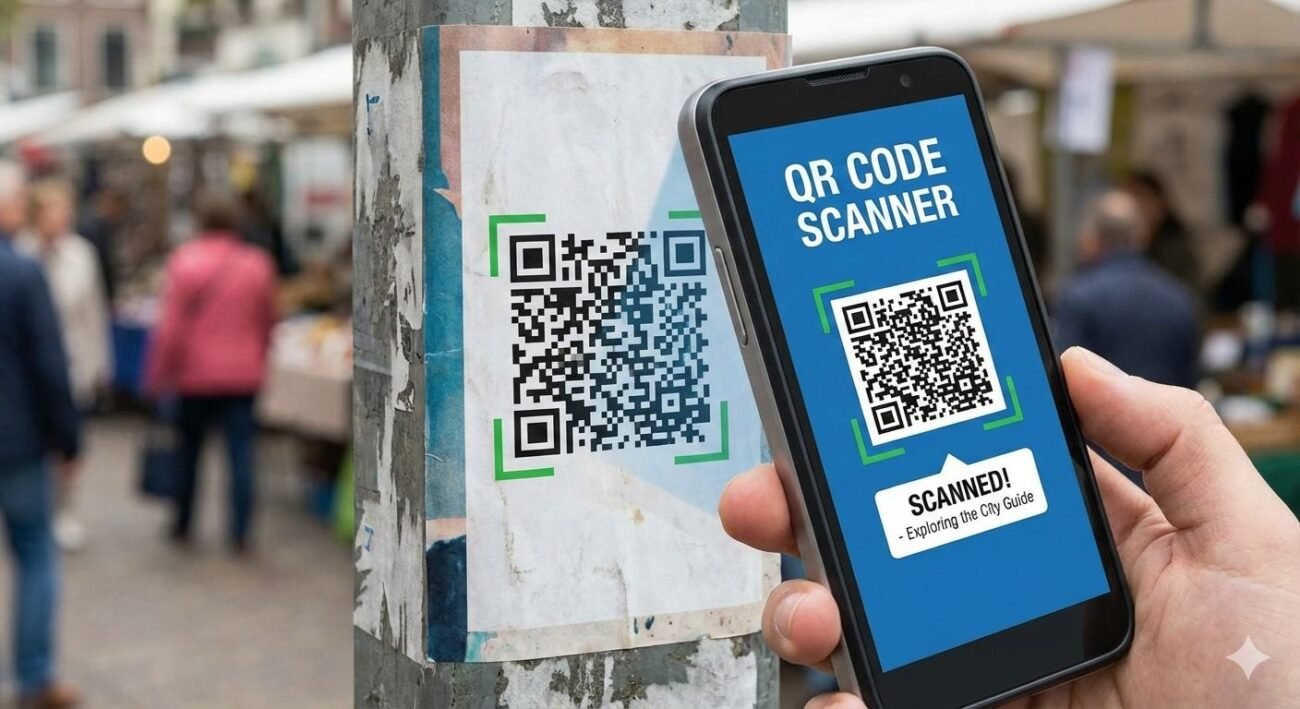
QR codes are everywhere — on restaurant menus, product packaging, event tickets, and even Wi‑Fi stickers. They’re a fast way to open links, save contacts, join networks, or pay bills. But to use them, you need a reliable QR code scanner. Many apps ask for permissions, show ads, or require sign‑ups. That’s where SuqMall’s Free QR Code Scanner changes the game.
This online QR code scanner works completely in your browser. It requires no registration, no login, and no payment. You can scan QR codes using your device’s camera or by uploading an image, screenshot, or photo. Every scan is processed locally — your data never leaves your phone or computer. Built by SuqMall, a brand known for simplicity and trust, this tool is designed to be fast, accessible, and safe for everyone.
In this guide, you’ll learn exactly how to use the scanner, explore its features, see real‑life examples, and get answers to common questions. Let’s dive in.
Key Features and Benefits
SuqMall’s QR scanner packs powerful, user‑friendly features without any clutter. Here’s what makes it stand out:
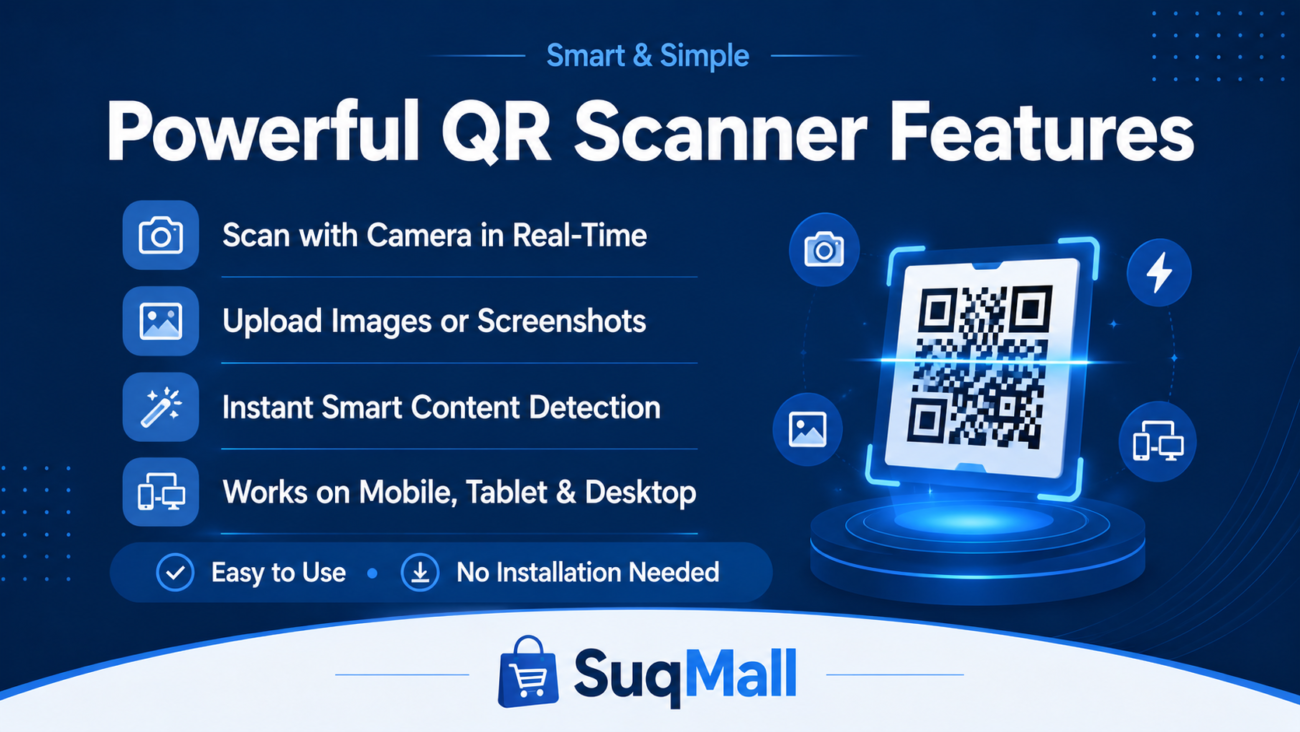
1. Camera Scanning with Live Detection
- Point your camera at a QR code — the tool instantly recognizes and decodes it.
- Support for both front and rear cameras, so you can scan even if the code is on your own screen.
- A clear scanning frame and animated guide help you position the code correctly.
- Benefit: No need to download an app. Just open the page, allow camera access, and scan.
2. Image Upload & Drag‑and‑Drop
- Have a QR code in a photo, screenshot, or PDF? Upload it directly.
- Drag the file onto the upload area or click to browse — the scanner will extract and decode any visible QR code.
- Benefit: Perfect for scanning codes from emails, social media images, or documents without using a second device.
3. Smart Content Recognition
The scanner automatically detects what kind of data the QR code contains:
| Content Type | What It Shows | Quick Action |
|---|---|---|
| Website link | Full URL with domain preview | Open link safely |
| Email address | Compose email directly | |
| Phone number | Phone number | One‑tap call |
| SMS | Pre‑written message | Send SMS |
| Wi‑Fi | Network name & password | Copy credentials |
| Contact (vCard) | Name, phone, email | Save contact or call |
| Calendar event | Event summary | View details |
- Benefit: No more guessing — the tool gives you exactly what you need with one tap.
4. 100% Private & Browser‑Based
- All scanning happens locally on your device. Camera feeds and uploaded images are never sent to any server.
- No cookies, no trackers, no analytics beyond the lightweight QR decoding library (jsQR) that runs entirely in your browser.
- Scan history is stored only in your browser’s local storage and can be cleared with one click.
- Benefit: Use it with confidence, even when scanning sensitive information like Wi‑Fi passwords or personal contact codes.
5. Built‑in Safety Checks
- When a QR code contains a link, the tool shows the full URL and highlights the domain before you open it.
- Links never open automatically — you always confirm first.
- Benefit: You’re protected from phishing or malicious sites. See exactly where a link leads before you tap.
6. Read‑Aloud Support
- A “Read Aloud” button reads the scanned result aloud using your device’s text‑to‑speech engine.
- Helpful for people with visual impairments or when you want a hands‑free experience.
- Benefit: Makes the tool truly accessible to everyone.
7. Accessibility at Its Core
- Semantic HTML, ARIA labels, and keyboard navigation ensure screen readers can interpret every button and status message.
- High contrast colors and large touch targets (minimum 44px) make it usable for low‑vision users.
- Live region announcements keep all users informed of scan progress.
- Benefit: No one is left out — the scanner works for all abilities.
8. Recent Scan History
- Your last 20 scans are saved locally, so you can revisit them without re‑scanning.
- History items show the content type and a preview; click to restore.
- Clear history anytime with one button.
- Benefit: Quickly access a link or number you scanned earlier without digging through apps.
How to Use SuqMall’s QR Code Scanner: Step‑by‑Step Guide
Using the Camera
- Open the tool on your SuqMall website (no install needed).
- Click “Start Camera” and grant camera permission when prompted.
- Position the QR code inside the animated scanning frame. Hold steady — the scanner works best when the code is centered and well‑lit.
- Wait for detection — a green “QR Code Detected” message appears, and the result is displayed below.
- Take action — copy the content, open a link, call a number, or read aloud.
Using Image Upload
- Switch to the “Upload Image” tab.
- Drag and drop an image onto the upload area, or click to browse.
- Wait for processing — the tool scans the image and displays any QR code found.
- View the result and use the smart buttons.
Practical Tips
- Hold steady: A shaky camera can delay scanning. Rest your elbow on a surface.
- Good lighting: Make sure the QR code is not in shadow or overly bright.
- Correct distance: Keep the code fill about 60‑70% of the frame.
- Clean image uploads: If scanning from a screenshot, use a clear, undistorted image. Avoid heavy compression.
Common Mistakes to Avoid
- ❌ Not allowing camera permission – without it, only image upload works.
- ❌ Using a blurry or small QR code in an image – the scanner needs enough resolution.
- ❌ Moving the phone too fast while scanning – give the scanner a second to lock on.
- ❌ Forgetting to check the link domain before opening – always verify the URL.
Real‑World Examples and Use Cases
Example 1: Joining a Friend’s Wi‑Fi
Sarah visits a café. The barista points to a QR code sticker on the counter. She opens SuqMall’s scanner, taps “Start Camera,” and scans the code. Instantly, the Wi‑Fi network name and password appear. She copies them and connects — no typing, no app download, and the credentials never leave her phone.
Example 2: Checking a Product Promotion
David sees a QR code on a clothing tag that promises a 20% discount. He isn’t sure if the link is safe. He opens SuqMall’s scanner, scans the code, and sees the full URL https://suqmall.com/promo?id=123. The green domain badge confirms it’s a genuine SuqMall page. He confidently opens the link and claims the offer.
Example 3: Saving a Contact from a Business Card
At a networking event, Mark receives a vCard QR code. He uploads a photo of the card. The scanner extracts the name, phone, and email. With one tap, he calls the contact and saves the details — no manual typing.
Example 4: Scanning a QR Code from a Screenshot
Lisa’s friend sends her a QR code via WhatsApp for a video call. She takes a screenshot, switches to the Upload Image tab, drags the screenshot in, and the tool reads the meeting link. She opens it directly, avoiding the need to scan her phone screen with another device.
When This Tool Is Especially Helpful
- Privacy‑conscious users: You don’t want an app collecting your camera data.
- Shared or public computers: No installation or account needed; just open a private browser tab.
- Accessibility needs: The read‑aloud and screen‑reader support make QR codes usable for blind or low‑vision users.
- Quick, occasional scans: You don’t want a permanent app cluttering your phone.

Frequently Asked Questions (FAQ)
Is the SuqMall QR Scanner really free?
Yes, completely free. No registration, subscription, or hidden fees. It’s a public tool provided by SuqMall.
Do you store my scans or camera data?
No. All processing happens locally in your browser. Camera streams and uploaded images never leave your device. Scan history is saved only in your own browser’s local storage, and you can delete it anytime.
What types of QR codes can it read?
Website links, plain text, email addresses, phone numbers, SMS messages, Wi‑Fi configurations, vCard contacts, calendar events, and more.
Can I use the scanner on my mobile phone?
Yes. It works smoothly on iOS and Android devices, tablets, and desktop browsers. Just open the webpage — no app needed.
What if the scanner doesn’t detect my QR code?
Ensure the code is clear, well‑lit, and centered. If using camera mode, try a different angle or distance. For images, use a high‑resolution file. If the problem persists, refresh the page and try again.
How do I switch between front and rear cameras?
After starting the camera, click the “Switch Camera” button. This is useful if the QR code is on your own screen.
Is the tool safe for scanning unknown QR codes?
Yes. The scanner never automatically opens links. It previews the full URL and highlights the domain, so you can verify its legitimacy before proceeding.
Can I scan multiple QR codes in one image?
The scanner detects the most prominent QR code. For multiple codes, scan them individually for reliable results.
Does the tool work offline?
The page must be loaded online because it uses the jsQR library from a CDN. However, once loaded, scanning is done locally without sending data anywhere. You can also host the single HTML file on your own server for fully offline use.
Conclusion: Start Scanning with Confidence
SuqMall’s Free QR Code Scanner combines speed, safety, and complete privacy into one simple tool. Whether you’re scanning a restaurant menu, a payment code, or a friend’s Wi‑Fi network, you can trust that your data stays on your device. The smart result recognition, read‑aloud feature, and accessible design make it usable by everyone — from tech beginners to privacy experts.
No downloads. No fees. No tracking. Just open the page, scan, and go.
Ready to try it yourself? Visit the SuqMall website and start scanning QR codes the safe, private way. If you found this guide helpful, share it with someone who still types long Wi‑Fi passwords by hand!
Have questions or feedback? Reach out to the SuqMall team through our website. We’re always happy to help.