
Blog
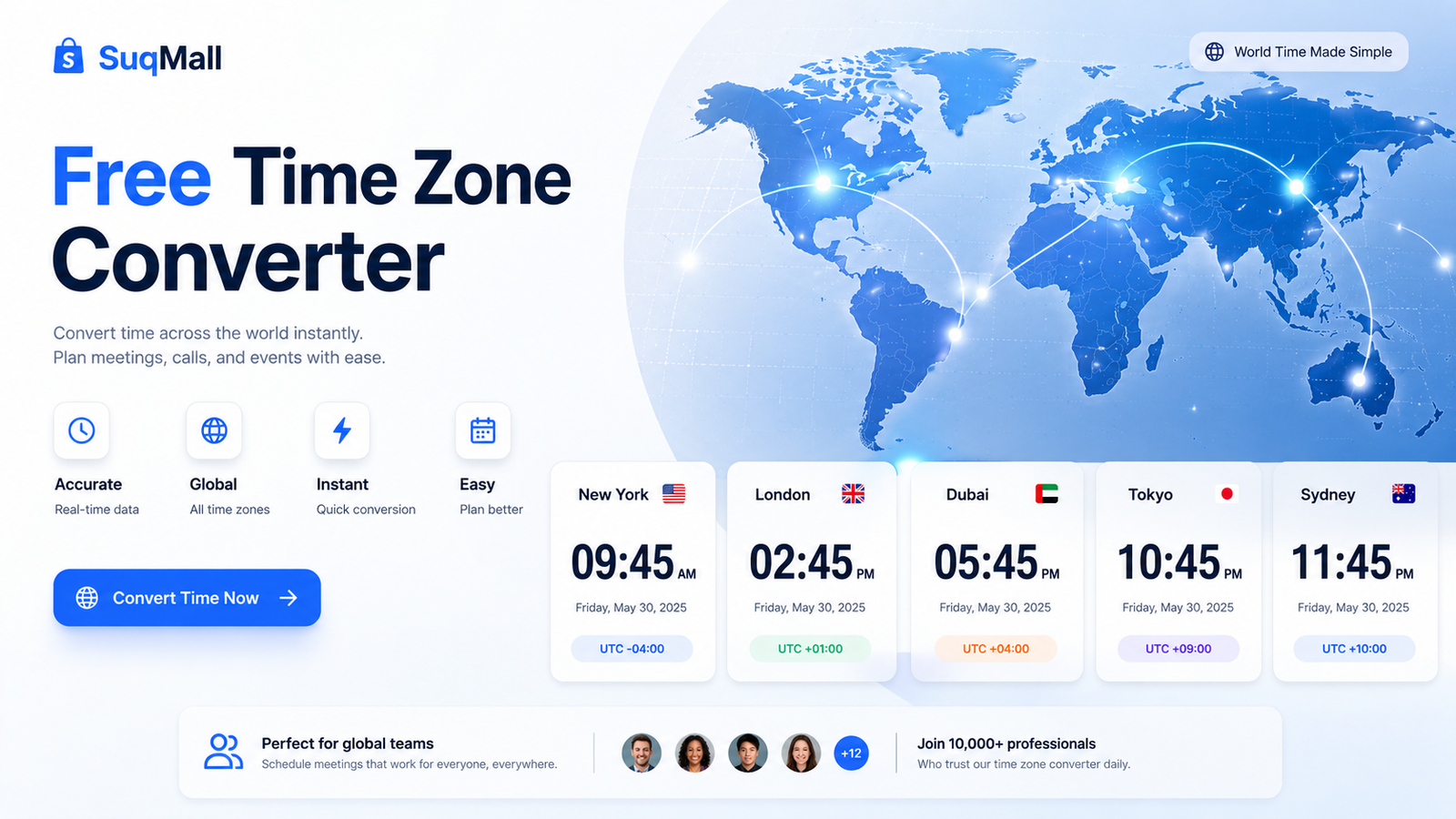
SuqMall Time Zone Converter Tool Guide: Convert Any Time Across the World Instantly — Free & No Registration

By SuqMall Tools | Free Online Time Converter
Introduction: Why a Reliable Time Converter Matters More Than Ever
The world is more connected than ever. Remote teams span continents, virtual meetings fill calendars, and international travel has become routine. But with global connection comes a persistent headache: what time is it where they are?
Enter the SuqMall Time Converter — a free, elegant, and powerful online tool that converts time across multiple time zones in seconds. Whether you’re scheduling a Zoom call with colleagues in Tokyo, planning a family video chat with relatives in London, or tracking a product launch across five continents, this tool removes the guesswork from time zone math.
Unlike basic converters that handle only two zones, the SuqMall Time Converter lets you compare up to 10 destination time zones simultaneously. It automatically handles Daylight Saving Time (DST) transitions, supports both 12-hour and 24-hour formats, and includes a one-click copy feature that exports all your results into clean, formatted text. Best of all? It’s 100% free — no registration, no login, no subscription.
Built with precision, accessibility, and speed in mind, this tool is designed for everyone: business professionals, travelers, event planners, gamers scheduling international raids, and anyone who needs accurate world time conversion at their fingertips.
Features and Benefits: What Makes This Time Converter Stand Out
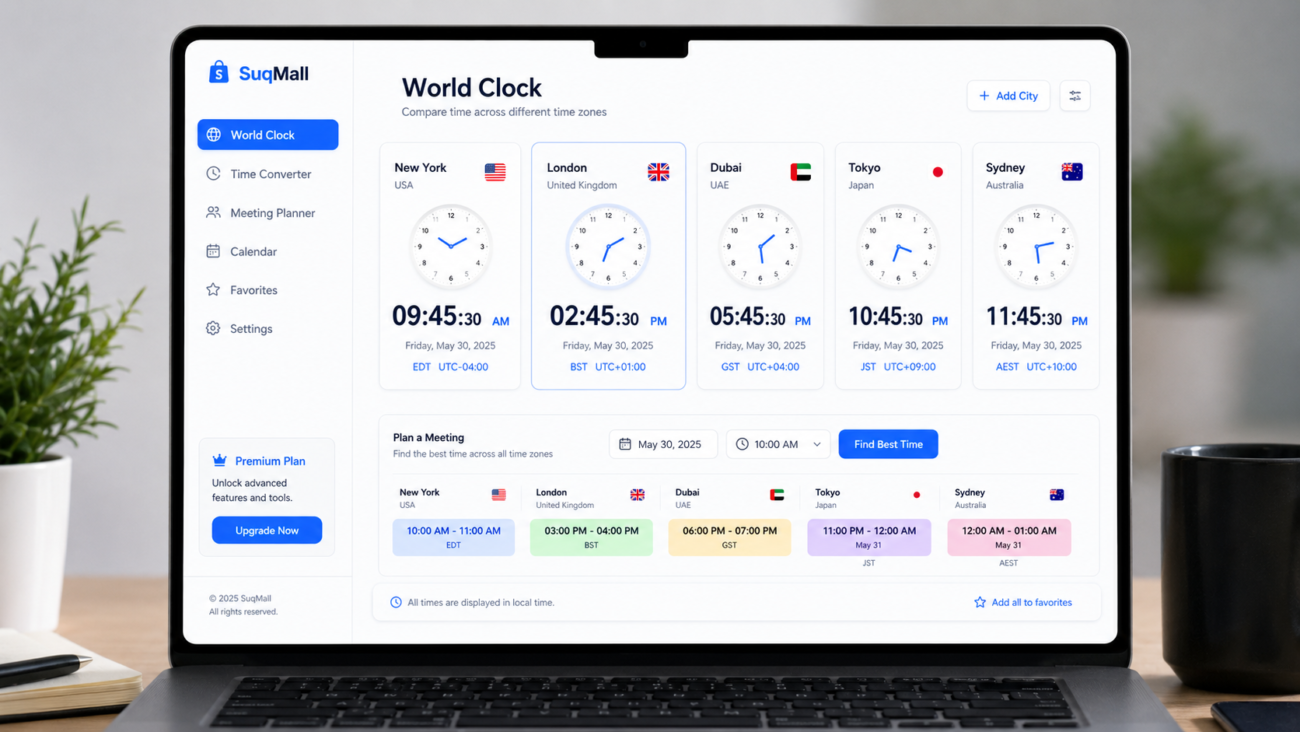
The SuqMall Time Converter is packed with features that make it both powerful and effortless to use. Here’s a detailed breakdown of what you get — and why each feature matters in real-world scenarios.
1. 🌐 Multi-Zone Comparison (Up to 10 Destinations)
What it does: Add as many destination time zones as you need — up to 10 — and see all converted times, dates, and time differences in a single view.
Benefit: Instead of converting one zone at a time and jotting down notes, you can compare your local time against New York, London, Dubai, Tokyo, and Sydney simultaneously. Perfect for global team meetings or planning international events.
Example: A project manager in San Francisco needs to find a meeting slot that works for team members in Chicago, Buenos Aires, Berlin, and Bangalore. With five destination zones side by side, she instantly spots the 9:00 AM PST window that hits everyone’s working hours.
2. ☀️ Automatic Daylight Saving Time (DST) Support
What it does: The tool uses the browser’s Intl.DateTimeFormat API with IANA time zone identifiers, which automatically accounts for DST rules in every supported time zone.
Benefit: You never need to manually check whether London is on GMT or BST, or whether Sydney is observing AEDT. The converter always uses the correct offset for the selected date — even on DST transition days.
Example: Scheduling a March 12th meeting between New York and London? The tool knows the US has already sprung forward while the UK hasn’t yet, giving you the accurate 4-hour gap instead of the usual 5.
3. 🕐 12-Hour and 24-Hour Format Toggle
What it does: Switch between AM/PM and 24-hour military time with a single click. All results update instantly.
Benefit: Users from different cultural backgrounds can view times in their preferred format. Americans can stick with AM/PM, while European and Asian users can switch to 24-hour display.
Example: A logistics coordinator in Germany (24-hour format) and a client in the US (12-hour format) can both use the same tool comfortably, each seeing times in their familiar notation.
4. 📅 Date Selection with Cross-Date Detection
What it does: Choose any date alongside your time input. When a destination zone falls on a different calendar date than the source, the tool clearly displays the destination date.
Benefit: Avoid the classic mistake of scheduling a Tuesday call that lands on Wednesday for your overseas colleague. The tool instantly flags date differences.
Example: You set 11:00 PM on Friday in Los Angeles. The converter shows that in Tokyo, it’s already 3:00 PM on Saturday — crucial information for weekend planning.
5. 📋 One-Click Copy All Results
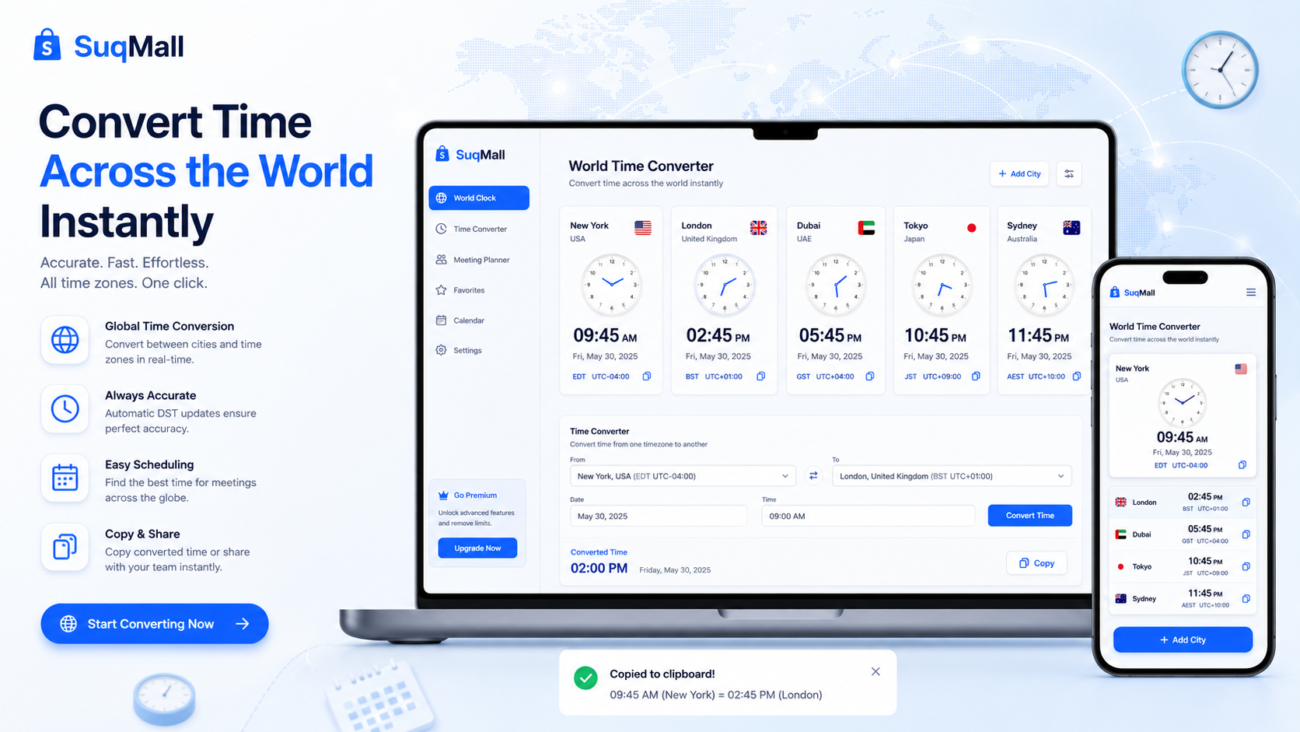
What it does: Click the “Copy All” button, and every converted time (with its time zone name, date, and difference) is copied to your clipboard in clean, readable text.
Benefit: Paste results directly into emails, Slack messages, calendar invitations, or documents. No more typing out time conversions manually.
Example: After finding the perfect meeting time, you click Copy All and paste the results into a team email — complete with every zone’s local time and date.
6. 🔀 Swap Source and Destination
What it does: With one click, swap your source time zone with the first destination zone. The time value adjusts automatically.
Benefit: Quickly reverse your perspective. If you started converting from New York to Tokyo, Swap lets you see what a Tokyo time would be in New York, without re-entering anything.
7. 📍 “Now” Button — Instant Current Time
What it does: Click “Now” to instantly set the date and time to the current moment in your selected source time zone.
Benefit: No need to glance at the clock and manually type the current time. One click sets everything to now.
8. 🔄 Reset to Defaults
What it does: Reset all inputs to the current date and time, restore your local time zone as the source, and reload three default destination zones.
Benefit: Start fresh instantly if you’ve been experimenting with different time zones and want a clean slate.
9. 🌍 Over 100 IANA Time Zones, Grouped by Region
What it does: Time zones are organized by region — Americas, Europe, Asia, Africa, Oceania, and UTC — making it easy to find the zone you need.
Benefit: No endless scrolling through a flat list. Region-based optgroups let you jump straight to the right area of the world.
10. 🕒 Live Clock Display
What it does: Two live clocks at the top of the converter show your local computer time and the current time in your selected source zone, updating every second.
Benefit: Quick at-a-glance reference without needing to perform a full conversion.

Step-by-Step Guide: How to Use the SuqMall Time Converter
Using the tool is intuitive, but here’s a detailed walkthrough to help you get the most out of every feature.
Step 1: Set Your Source Date and Time
Start by selecting the date and time you want to convert. Use the date picker and time input fields at the top of the converter.
- Tip: Click the “Now” button to instantly load the current date and time in your source zone. This is the fastest way to get started.
- Best practice: Always double-check the date. A wrong date can lead to incorrect DST calculations.
Step 2: Choose Your Source Time Zone
Select the time zone that matches the date and time you entered. By default, the tool detects your local time zone from your browser settings.
- Tip: The source time zone is highlighted in the live clock bar, so you always know which zone you’re converting from.
- Common mistake: Don’t assume the source zone is correct just because it’s your local zone. If you’re converting a time from another city, change the source zone accordingly.
Step 3: Add Destination Time Zones
Click the “+ Add Zone” button to add a destination time zone. Repeat for each additional zone you want to compare — up to 10.
- Tip: The tool comes pre-loaded with three popular destinations (London, Tokyo, Dubai). You can remove or replace them as needed.
- Best practice: Add only the zones you genuinely need. Fewer zones mean cleaner, faster readability.
Step 4: Read Your Results
Each destination row shows:
- Converted Time: The local time in that zone for your selected source moment.
- Date (if different): If the destination date differs from the source date, it appears in bold below the time.
- Time Difference: A colored badge showing how many hours ahead or behind the destination is relative to the source.
Step 5: Copy or Share Your Results
When you’re satisfied with the conversions, click the “Copy All” button. The results are copied to your clipboard in a clean format, ready to paste anywhere.
Step 6: Toggle Time Format
Use the 12h / 24h toggle buttons above the converter to switch between AM/PM and 24-hour display. All results update instantly.
Step 7: Use Swap for Reverse Conversion
Need to flip your perspective? Click “Swap” to exchange the source zone with the first destination zone. The time adjusts accordingly.
Step 8: Reset When Needed
Click “Reset” to return everything to defaults — current time, your local zone as source, and the three default destinations.
Real-World Use Cases: When This Time Converter Saves the Day
Use Case 1: Global Team Meetings
Scenario: Sarah is a remote team lead in Vancouver. She manages developers in Dublin, designers in São Paulo, and a client in Singapore. She needs to find a weekly standup time that works for everyone.
How she uses the tool: Sarah sets the source to America/Vancouver, picks her preferred morning time (9:00 AM), then adds Europe/Dublin, America/Sao_Paulo, and Asia/Singapore as destinations. She instantly sees:
- Dublin: 5:00 PM (reasonable end-of-day)
- São Paulo: 2:00 PM (mid-afternoon, good)
- Singapore: 1:00 AM next day (impossible!)
Sarah adjusts to 7:00 AM Vancouver and finds a sweet spot: Dublin 3:00 PM, São Paulo 12:00 PM, Singapore 11:00 PM. She copies the results and pastes them into the calendar invite.
Use Case 2: International Event Planning
Scenario: An event organizer is hosting a virtual conference with speakers from Los Angeles, London, Mumbai, and Sydney. She needs to publish a schedule that shows each session in every speaker’s local time.
How she uses the tool: She sets the source to the conference venue’s time zone, enters each session time, and adds all speaker zones as destinations. She copies the results for each session and builds a time zone table for the event website.
Use Case 3: Travel Planning
Scenario: Mark is flying from New York to Tokyo. His flight departs at 2:00 PM EST on Friday and arrives 14 hours later. He wants to know what time it’ll be in Tokyo when he lands.
How he uses the tool: Mark sets the source to America/New_York, enters the departure date and time, then adds Asia/Tokyo as the destination. He adds 14 hours to his departure time and checks again to see the arrival time in Tokyo. The tool confirms it’ll be Saturday evening in Tokyo.
Use Case 4: Stock Market Tracking
Scenario: A trader in Chicago monitors the opening bells of the London Stock Exchange, Euronext, Tokyo Stock Exchange, and Shanghai Stock Exchange.
How he uses the tool: He sets the source to America/Chicago, enters 12:00 AM as a baseline, and adds all four exchange time zones. He quickly builds a reference table showing when each market opens in his local time.

Frequently Asked Questions (FAQ)
Q: How does the Time Converter handle Daylight Saving Time (DST)?
A: The converter uses the Intl.DateTimeFormat API with IANA time zone identifiers, which automatically accounts for all DST rules in every supported time zone. Whether it’s the US “spring forward” in March, the UK “summer time” in late March, or Australia’s “fall back” in April, the offsets are always correct for the selected date.
Q: Can I really compare multiple time zones at once?
A: Yes. You can add up to 10 destination time zones simultaneously. Each destination displays its own converted time, date (if different from source), and a colored badge showing the exact time difference (e.g., “+5 hours ahead” or “-3 hours behind”).
Q: Is the Time Converter completely free?
A: Absolutely. The SuqMall Time Converter is 100% free. There is no registration, login, subscription, or payment of any kind. You can use it as many times as you need, for as long as you need.
Q: Does the tool support both 12-hour and 24-hour time formats?
A: Yes. Use the toggle buttons at the top of the converter to switch between 12-hour (AM/PM) and 24-hour formats. All results — including the live clocks — update instantly.
Q: How do I copy the results?
A: Click the green “Copy All” button in the results summary bar. Every destination’s converted time, date (if applicable), and time difference is copied to your clipboard in clean text format, ready to paste into emails, messages, calendar invites, or documents.
Q: What time zones are included?
A: The converter includes over 100 IANA time zones, organized by region: Americas, Europe, Asia, Africa, Oceania, and UTC. All major cities and UTC offsets are covered, from New York and London to Kathmandu and Apia.
Q: Does the tool work on mobile devices?
A: Yes, the converter is fully responsive and optimized for mobile use. Buttons are large enough to tap, select dropdowns are easy to navigate, and the layout adapts smoothly to smaller screens.
Q: Can I use this tool offline?
A: Once the page has loaded, most functionality works without an active internet connection because all calculations happen in your browser using JavaScript. However, the initial page load requires internet access.
Q: Is my data private?
A: Yes. The converter runs entirely in your browser. No data is sent to any server. Your selected time zones, dates, and times stay on your device.
Q: Why does the date sometimes change for a destination?
A: When the time difference between your source zone and a destination zone crosses midnight, the destination date will differ from the source date. The tool clearly displays any date changes so you never accidentally schedule something on the wrong day.
Conclusion: Your Go-To Free Time Conversion Tool
The SuqMall Time Converter is more than just a basic clock comparator. It’s a thoughtfully designed, feature-rich tool that solves real problems for real people — whether you’re coordinating across continents, planning international events, tracking global markets, or simply trying to call a friend abroad without waking them up at 3:00 AM.
With support for over 100 time zones, automatic Daylight Saving Time handling, multi-zone comparison, dual time formats, and one-click copy, this converter eliminates the friction from time zone math.
And the best part? It’s completely free. No accounts, no paywalls, no limits. Just open the page and start converting.
Try It Now
Visit the SuqMall Time Converter today and experience the simplest, most reliable way to convert time across the world. Bookmark it for your next international call, share it with your remote team, and never second-guess a time zone again.
Have feedback or a feature request? We’d love to hear from you. Reach out through the SuqMall website and let us know how we can make this tool even better for you.
© 2026 SuqMall. This tool is free for public use worldwide. No registration required.