Blog
Free Online PDF To JPG Converter Web Tool Guide: Free Online Tool

Introduction
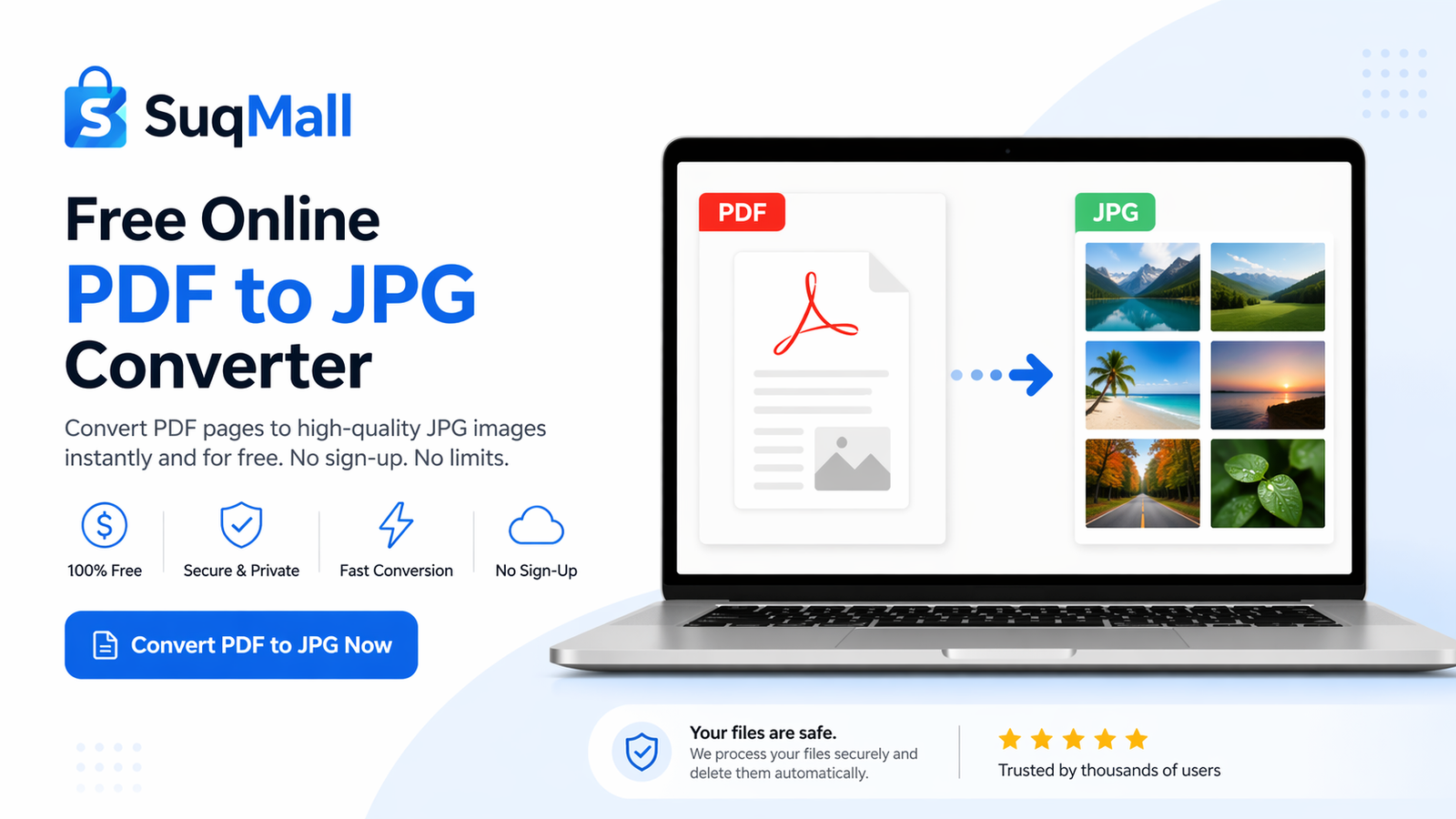
In today’s digital world, we frequently need to convert documents between different formats. Whether you’re creating presentations, sharing content on social media, or archiving important documents, converting PDF files to JPG images is a common necessity. Our Free PDF to JPG Converter is the solution you’ve been searching for—a powerful, browser-based tool that transforms your PDF documents into high-quality images instantly, without any software installation or technical expertise required.
This comprehensive guide will show you how to leverage this free tool to streamline your workflow, enhance your productivity, and unlock new possibilities for your digital documents.
Key Features and Benefits
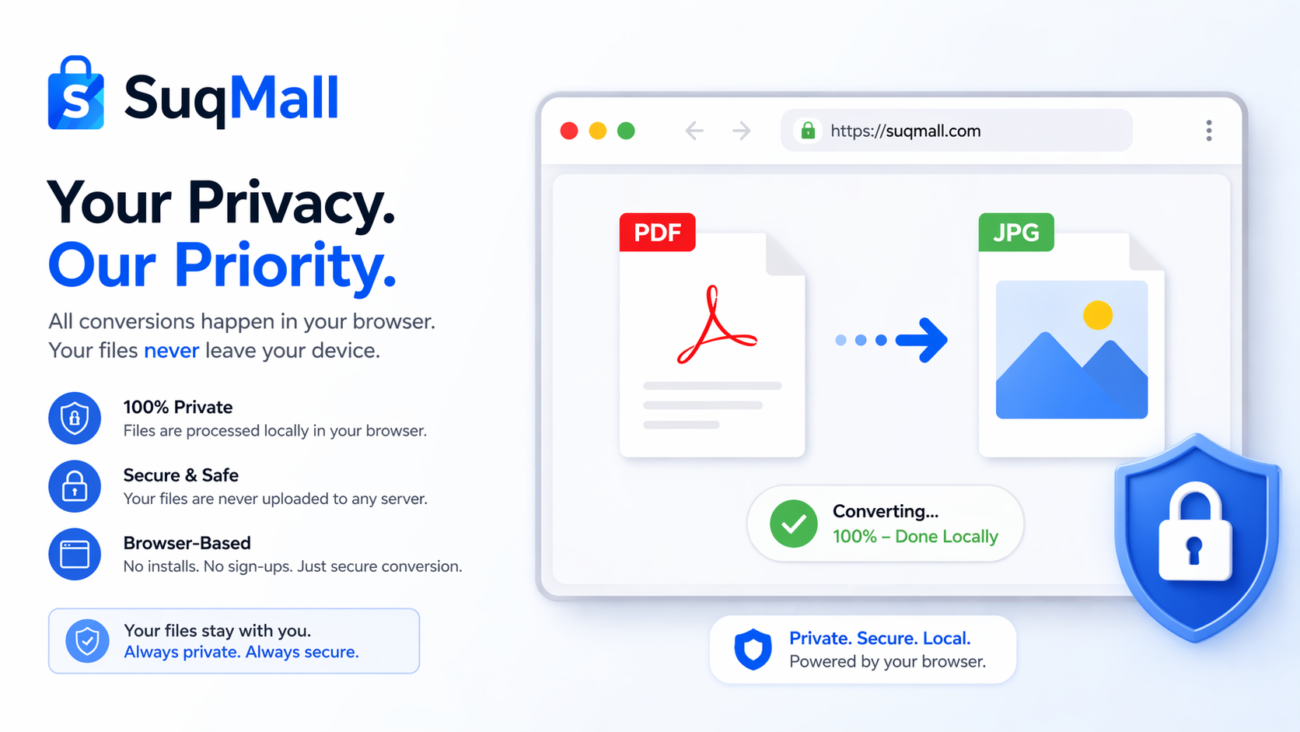
🔒 Complete Privacy Protection
- Feature: All processing happens locally in your browser
- Benefit: Your sensitive documents never leave your computer, ensuring maximum security
- Example: Perfect for confidential business reports or personal documents
📁 Batch Processing Capability
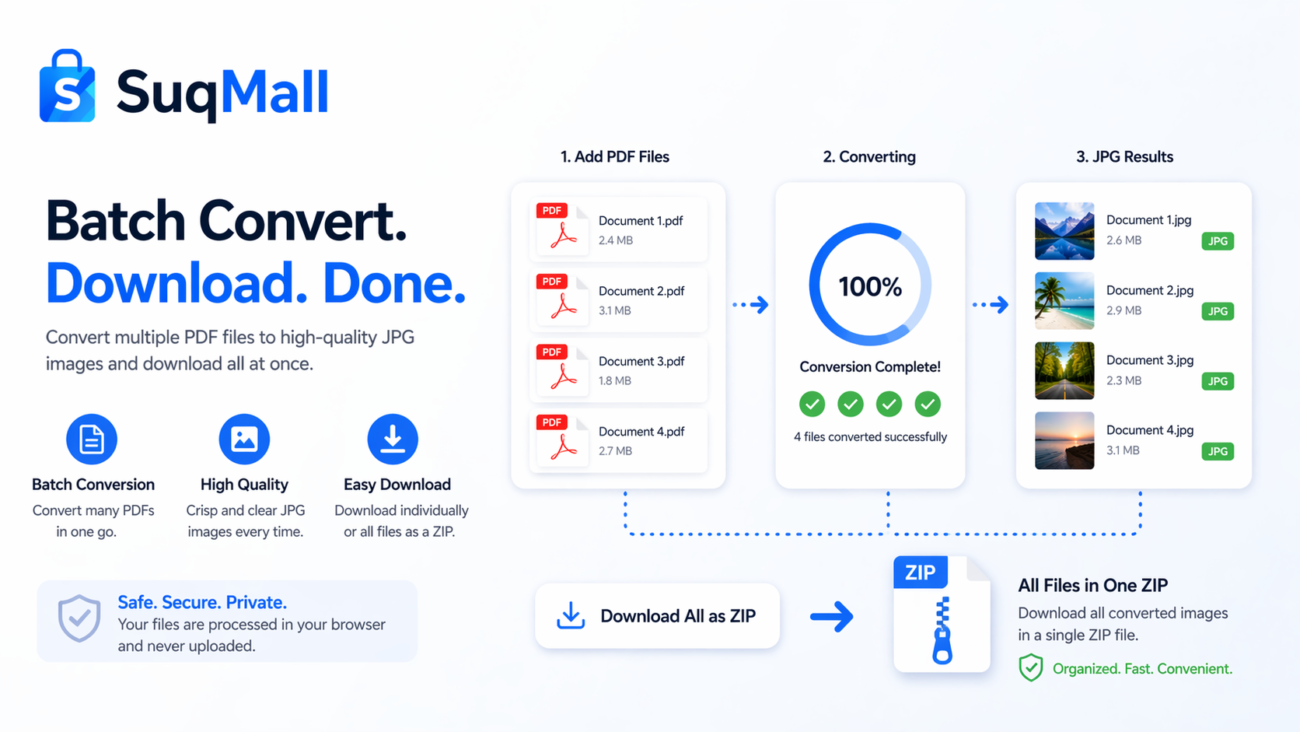
- Feature: Convert multiple PDF files simultaneously
- Benefit: Save time by processing entire folders of documents in one click
- Example: Convert a month’s worth of invoices or reports in minutes instead of hours
🎨 Customizable Quality Settings
- Feature: Choose from High (300 DPI), Medium (150 DPI), or Low (72 DPI) quality
- Benefit: Optimize file size and quality based on your specific needs
- Example: Use High quality for printing, Medium for presentations, Low for web use
🔄 Multiple Format Support
- Feature: Convert to JPG or PNG formats
- Benefit: Flexibility to choose the best format for your project
- Example: PNG for images with transparency, JPG for photographs
⚡ Instant Results
- Feature: No waiting for server processing
- Benefit: Get your converted images immediately after upload
- Example: Quickly convert a PDF to include in a time-sensitive email
💾 ZIP Download Option
- Feature: Download all converted images as a single ZIP file
- Benefit: Organized file management for multiple page documents
- Example: Perfect for e-books or multi-page reports
Step-by-Step Guide: How to Use the PDF to JPG Converter
Step 1: Access the Tool
Navigate to our PDF to JPG converter tool on SuqMall.Net. The interface is clean and intuitive, requiring no registration or login.
Step 2: Upload Your PDF Files
- Drag and drop your PDF files directly onto the upload area
- Or click “Choose Files” to browse your computer
- Supported: Multiple files, up to 100MB each
Step 3: Adjust Your Settings
Select your preferred options:
- Quality: High (300 DPI), Medium (150 DPI), or Low (72 DPI)
- Format: JPG or PNG
Step 4: Convert and Download
- Click “Convert to JPG” to start the process
- Watch the real-time progress indicator
- Download individual images or all images as a ZIP file
Pro Tips for Best Results:
- For text documents: Use Medium quality (150 DPI) for optimal clarity and file size balance
- For image-heavy PDFs: Choose High quality (300 DPI) to preserve detail
- For web use: Low quality (72 DPI) provides faster loading times
- File naming: The tool automatically names files with the original PDF name and page numbers
Common Mistakes to Avoid:
- ❌ Uploading password-protected PDFs (the tool cannot process them for security reasons)
- ❌ Using scanned PDFs (digital source PDFs produce better results)
- ❌ Converting extremely large files without checking quality settings first
Real-World Examples and Use Cases
Case Study 1: Small Business Owner
Situation: Maria runs a small bakery and needs to share daily specials on social media. Her designer creates PDF menus, but social media platforms prefer JPG images.
Solution: Using our PDF to JPG converter, Maria quickly transforms her PDF menus into optimized JPG images perfect for Instagram and Facebook posts. The batch processing feature allows her to convert a week’s worth of menus in under two minutes.
Case Study 2: Student Researcher
Situation: David is writing his thesis and needs to include charts from research papers in his presentation. The charts are in PDF format, but his presentation software works better with image files.
Solution: David uses our tool to extract specific pages containing charts as high-quality JPG images. The precise quality control ensures his charts remain sharp and professional in his presentation.
Case Study 3: Real Estate Agent
Situation: Sarah needs to create property listing collages for her website. The floor plans are in PDF format, but she needs JPG images to combine with photos.
Solution: Sarah converts the PDF floor plans to PNG format (preserving transparency) and seamlessly integrates them into her property showcases, enhancing her listings’ professionalism.
Frequently Asked Questions
❓ Is this tool completely free to use?
Yes! Our PDF to JPG converter is 100% free with no hidden costs, limitations, or watermarks. You can convert as many files as you need without any restrictions.
❓ Do I need to create an account or register?
No registration required. Our tool works immediately without any sign-up process, protecting your privacy and saving you time.
❓ What happens to my files after conversion?
Your files never leave your computer. All processing happens locally in your browser, ensuring complete privacy and security for your documents.
❓ What types of PDFs work best with this converter?
Digitally created PDFs (from Word, PowerPoint, etc.) produce the best results. Scanned PDFs can be converted but may have lower quality depending on the original scan resolution.
❓ Can I convert password-protected PDFs?
No, for security reasons, our tool cannot process password-protected or encrypted PDF files. Please remove password protection before conversion.
❓ What’s the maximum file size I can convert?
The tool handles files up to 100MB, which covers most practical use cases. For larger files, consider splitting them into smaller sections.
❓ Does the tool work on mobile devices?
Yes! Our converter is fully responsive and works perfectly on smartphones, tablets, and desktop computers across all modern browsers.
❓ How long does the conversion process take?
Conversion time depends on file size and page count, but most documents convert in seconds. The tool provides a progress indicator so you can track the conversion status.
Conclusion: Transform Your PDF Workflow Today
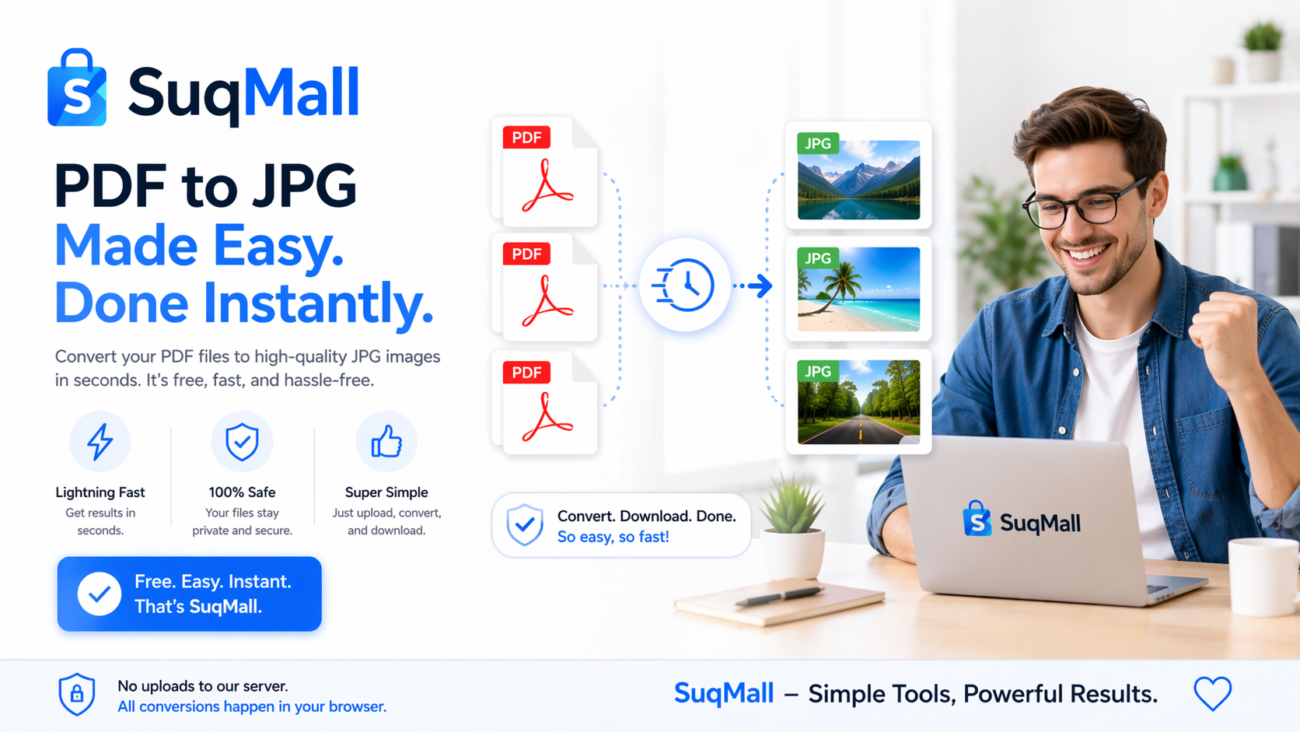
Converting PDF files to JPG images doesn’t need to be a complicated, time-consuming process. Our free online tool eliminates the need for expensive software, complicated installations, and privacy concerns. With its user-friendly interface, robust feature set, and instant results, you can streamline your document workflow and focus on what matters most—creating great content.
Ready to experience the difference?
[Try our Free PDF to JPG Converter now] and discover how effortless document conversion can be. Share your success stories with us and don’t forget to explore our other free tools designed to boost your productivity!
This comprehensive guide is part of SuqMall.Net’s commitment to providing valuable, free resources that help individuals and businesses work smarter. Bookmark this page for future reference and share it with colleagues who might benefit from effortless PDF to JPG conversion.