Blog
Free Online WEBP to PDF Converter Web Tool Guide: The Ultimate Free Online Tool for Secure Document Conversion


Introduction
In today’s digital world, we’re constantly juggling different file formats. WebP has become increasingly popular for web images due to its superior compression, but when it comes to documents, PDF remains the gold standard. What happens when you need to convert your WebP images to PDF format? Enter the WebP to PDF Converter from SuqMall.Net – a powerful, privacy-focused tool that handles all your conversion needs directly in your browser.
This comprehensive guide will walk you through everything you need to know about converting WebP to PDF, why our tool stands out from the competition, and how you can make the most of its advanced features for all your document conversion needs.
Why Convert WebP to PDF?
WebP offers excellent compression for web use, but PDF provides universal compatibility across devices and platforms. Converting WebP to PDF allows you to:
- Combine multiple images into a single, professional document
- Maintain image quality in a universally accessible format
- Share image collections with anyone, regardless of their device or software
- Add WebP images to reports, presentations, or portfolios
- Ensure your images print correctly with proper page sizing
Key Features and Benefits
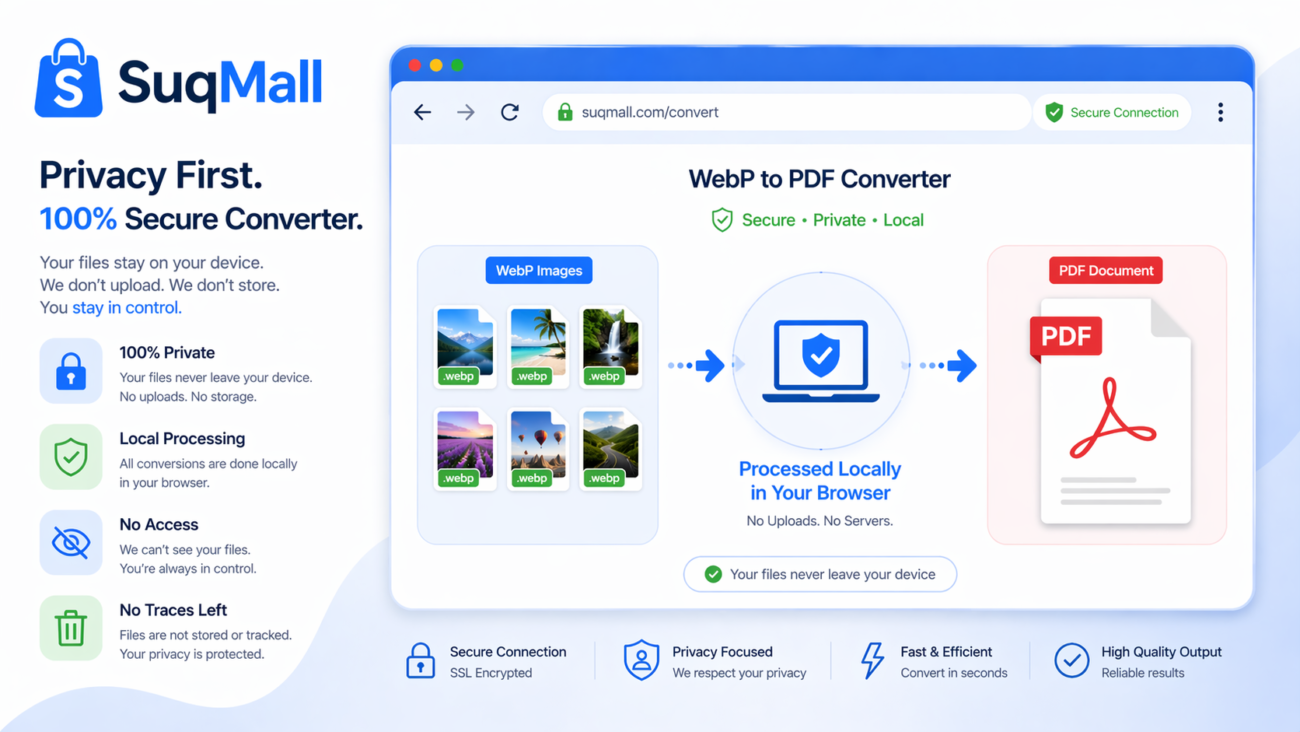
🔒 100% Client-Side Processing
What it is: All conversion happens directly in your browser
Benefit: Your files never leave your computer, ensuring complete privacy and security. Unlike other online converters that upload your files to their servers, our tool processes everything locally.
📁 Batch Conversion Support
What it is: Convert multiple WebP files at once
Benefit: Save time by processing dozens of images simultaneously. Perfect for converting entire image galleries or project assets in one go.
🎛️ Customizable Page Settings
What it is: Adjust page size, orientation, and margins
Benefit: Create PDFs tailored to your specific needs – whether it’s A4 for professional documents or custom sizes for special projects.
🖼️ Drag-and-Drop Reordering
What it is: Visually rearrange images before conversion
Benefit: Ensure your PDF pages are in the exact order you need without tedious manual reorganization.
🌙 Dark Mode Support
What it is: Toggle between light and dark themes
Benefit: Work comfortably in any lighting condition, reducing eye strain during extended conversion sessions.
💾 Conversion History
What it is: Save and repeat previous conversion settings
Benefit: Maintain consistency across multiple conversions and save time on repetitive tasks.
Step-by-Step Guide: How to Use the WebP to PDF Converter
Step 1: Access the Tool
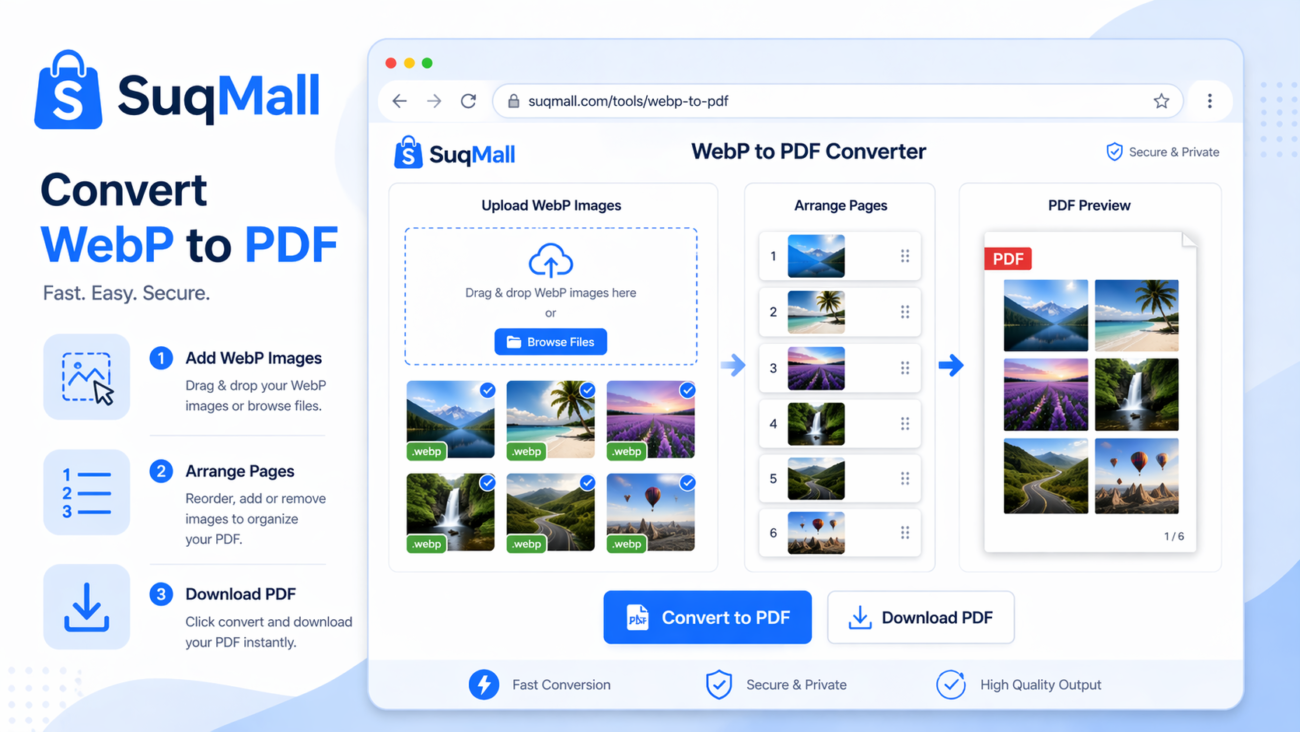
Navigate to the WebP to PDF converter on SuqMall.Net. The tool loads instantly with no registration required.
Step 2: Upload Your WebP Files
You have three options to add files:
- Drag and drop WebP files directly onto the dropzone
- Click “Browse Files” to select files from your computer
- Use copy-paste if supported by your browser
Pro Tip: You can select multiple files at once by holding Ctrl (or Cmd on Mac) while selecting.
Step 3: Arrange Your Files (Optional)
If converting multiple images to a single PDF:
- Review the thumbnail previews
- Drag and drop files to reorder them
- Remove any unwanted files using the “Remove” button
Step 4: Configure Conversion Settings
Conversion Mode:
- Single PDF: Merges all images into one multi-page document
- Multiple PDFs: Creates individual PDF files for each image (downloads as ZIP)
Page Setup:
- Size: Choose from A4, Letter, or set custom dimensions
- Orientation: Portrait or Landscape based on your image proportions
- Margins: Adjust from 0-50mm to ensure content isn’t cut off
Quality Settings:
- Image Quality: 50-100% (higher for printing, lower for screen viewing)
- Resolution: 72 DPI (screen), 150 DPI (good balance), 300 DPI (high quality)
Best Practice: Use 90-100% quality for printing and 150-300 DPI for professional documents.
Step 5: Convert and Download
- Click “Convert to PDF”
- Wait for the progress bar to complete
- Download your finished PDF using the “Download PDF” button
Common Mistakes to Avoid
- Ignoring Margins: Without adequate margins, content may be cut off during printing
- Wrong Orientation: Landscape images in portrait pages waste space and reduce quality
- Overloading with Files: Converting 50+ images simultaneously may slow down your browser
- Using Low Quality for Print: Always use 90-100% quality and 300 DPI for professional printing
Real-World Examples and Use Cases
Case Study 1: Small Business Portfolio
Situation: A freelance photographer needed to send a portfolio to potential clients, but their website images were in WebP format.
Solution: Using our WebP to PDF converter, they:
- Selected 20 best portfolio images
- Arranged them in a strategic order using drag-and-drop
- Chose A4 format with 15mm margins for professional appearance
- Set quality to 95% and 300 DPI for print-ready results
Outcome: Created a stunning 20-page PDF portfolio that impressed clients and led to three new contracts.
Case Study 2: Academic Research
Situation: A university researcher had collected hundreds of WebP images from online sources for a paper.
Solution: They used batch processing to:
- Convert images in groups of 30 to avoid browser slowdown
- Used the “Multiple PDFs” option to organize images by category
- Applied consistent 10mm margins and 150 DPI across all conversions
Outcome: Efficiently organized research materials while maintaining citation-quality image resolution.
Case Study 3: Personal Project Documentation
Situation: A DIY enthusiast documented their home renovation with WebP images but needed to share progress with family.
Solution: Created a chronological PDF story by:
- Uploading images from different stages of the project
- Using drag-and-drop to arrange them in timeline order
- Adding custom page sizes to highlight before/after comparisons
Outcome: Produced a compelling visual story that was easily shareable with non-technical family members.

Frequently Asked Questions
❓ Is my data secure when using this converter?
✅ Absolutely! All processing happens directly in your browser. Your files are never uploaded to any server, ensuring complete privacy and security.
❓ Can I convert animated WebP files?
✅ Yes, but with limitations. Animated WebP files will be converted as static images showing the first frame only. PDF format doesn’t support animations.
❓ What’s the maximum file size I can convert?
✅ The tool can handle files up to your browser’s memory limits. For optimal performance, we recommend converting batches of up to 50 images or 100MB total.
❓ Can I reorder pages after uploading?
✅ Yes! Use the drag-and-drop interface to rearrange thumbnails before conversion. The PDF will reflect your chosen order.
❓ What browsers are supported?
✅ All modern browsers including Chrome, Firefox, Safari, and Edge. Some advanced WebP features may have limitations in Safari.
❓ Is there any cost for using this tool?
✅ Completely free! There are no hidden fees, watermarks, or limitations. We believe in providing valuable tools without barriers.
❓ How does this compare to other online converters?
✅ Superior in privacy and features. Unlike server-based converters, we process everything locally. We also offer more customization options than most free tools.
Advanced Tips and Tricks
Optimizing for Different Use Cases
For Web Sharing:
- Use 72 DPI and 70-80% quality
- Smaller file sizes load faster
- Perfect for email attachments or online portfolios
For Professional Printing:
- Always use 300 DPI and 95-100% quality
- Include 10-15mm margins
- Choose appropriate page sizes (A4 for documents, custom for photos)
For Archival Purposes:
- Maximum quality settings (100%, 300 DPI)
- Standard page sizes for long-term compatibility
- Consider creating multiple smaller PDFs for better organization
Keyboard Shortcuts and Efficiency Tips
- Ctrl+A (Cmd+A on Mac) to select all files when browsing
- Use the Tab key to navigate through settings quickly
- Enter key to trigger the convert button when focused
Conclusion: Why Choose Our WebP to PDF Converter?
In a digital landscape filled with privacy concerns and limited free tools, our WebP to PDF converter stands out by putting users first. With its client-side processing, extensive customization options, and intuitive interface, it solves the real-world problem of format conversion without compromising on security or quality.
Whether you’re a professional needing to convert client assets, a student organizing research materials, or someone looking to preserve personal memories, this tool adapts to your needs while keeping your data completely private.
Ready to Convert Your WebP Files?
Try our WebP to PDF converter today and experience the difference:
- Visit SuqMall.Net WebP to PDF Converter
- Drag and drop your first WebP file
- Experience fast, secure, and free conversion
Have questions or success stories to share? We’d love to hear about your experience! Share your thoughts in the comments below or reach out to our support team.
Looking for other conversion tools? Check out our PNG to PDF, JPG to PDF, and PDF Merge tools for all your document conversion needs.