Blog
Free Online CSV To PDF Converter Web Tool Guide: Secure, Fast & Unlimited

Introduction
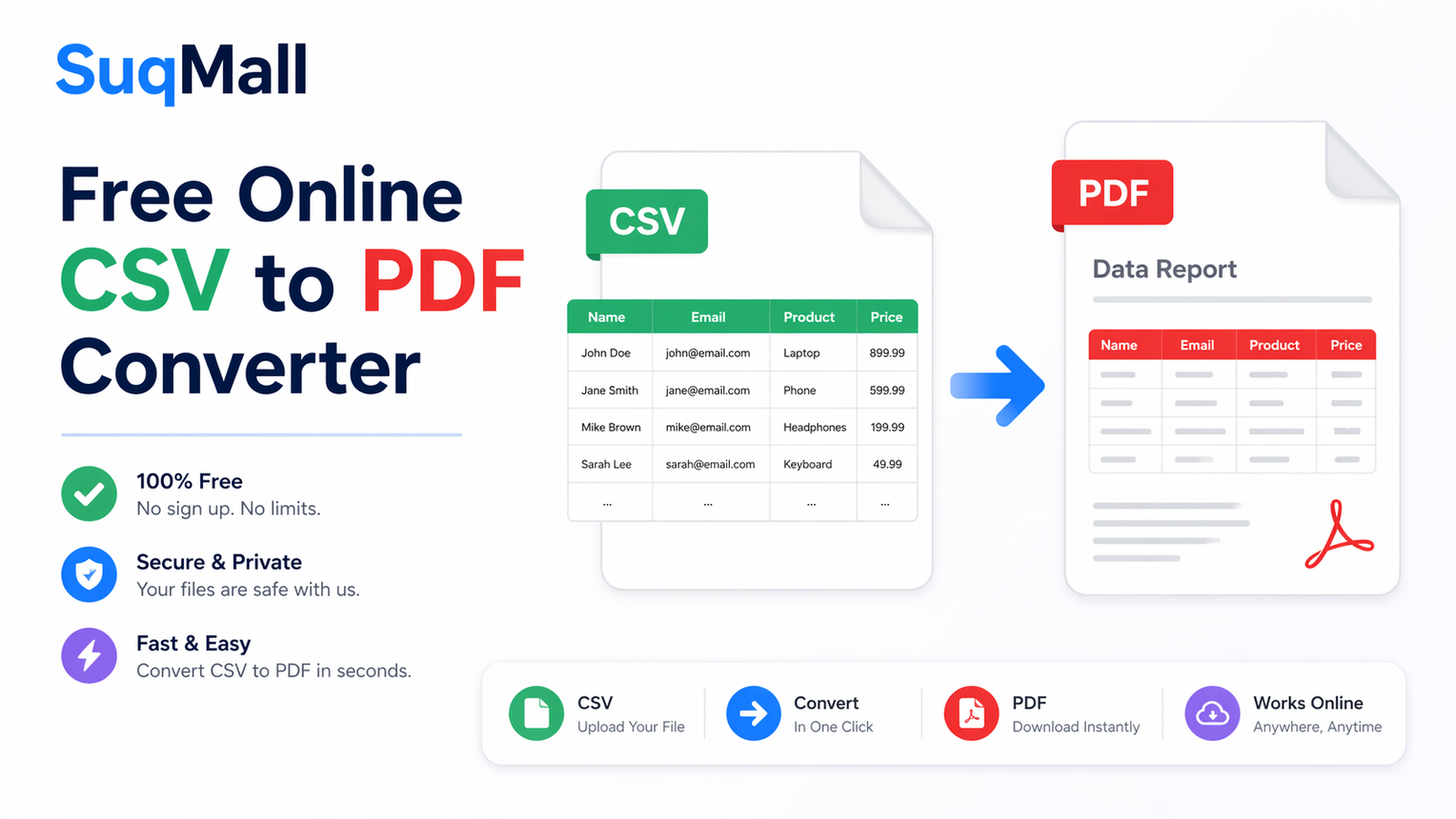
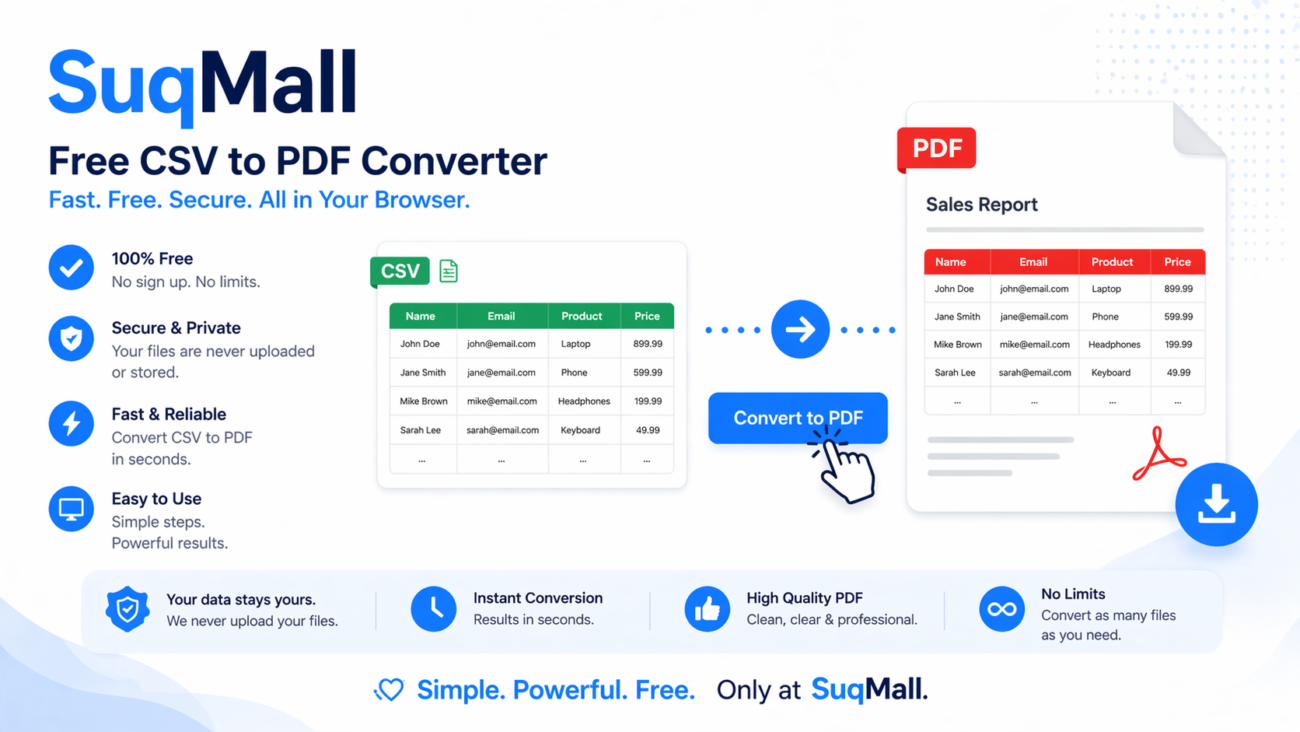
In today’s data-driven world, the ability to convert between different file formats is more crucial than ever. Whether you’re a business professional preparing reports, a student organizing research data, or an analyst sharing findings, you’ve likely encountered the challenge of converting CSV files to more presentable formats. That’s where our Free CSV to PDF Converter comes in—a powerful, secure, and completely free web tool that transforms your raw data into professional-looking PDF documents in seconds.
This comprehensive guide will show you how this tool can streamline your workflow, protect your sensitive information, and deliver professional results without any cost or technical expertise required.

Features and Benefits
🔒 100% Secure & Private Processing
Benefit: Your data never leaves your computer
- All conversion happens locally in your browser
- No server uploads mean zero risk of data breaches
- Perfect for handling confidential business data, financial records, and personal information
⚡ Instant Batch Conversion
Benefit: Process multiple files simultaneously
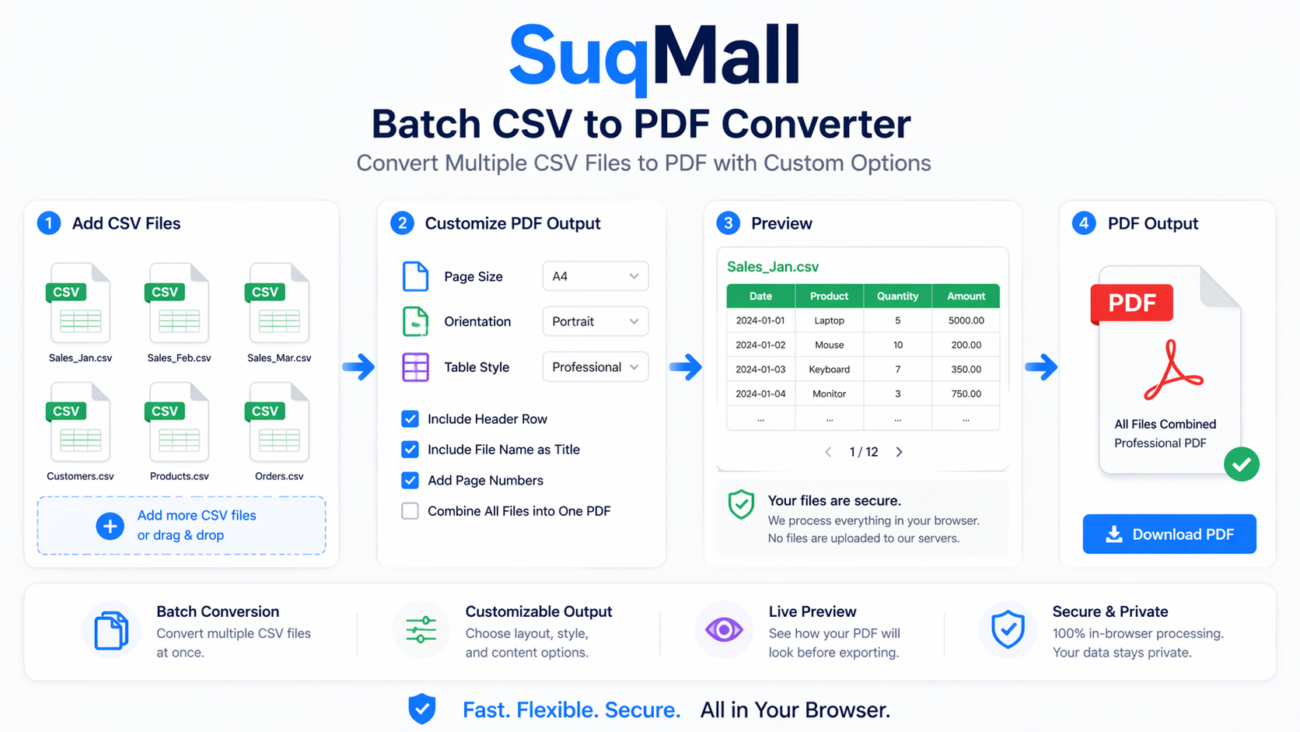
- Convert several CSV files at once with batch processing
- Option to merge all files into a single PDF document
- Save hours compared to manual conversion methods
🎨 Customizable Output Options
Benefit: Professional-looking results every time
- Choose between portrait and landscape orientations
- Select from multiple font sizes (8pt to 16pt)
- Apply different table styles (basic, striped, or grid)
- Customize CSV delimiters for perfect parsing
💯 Completely Free & Unlimited
Benefit: No hidden costs or restrictions
- Zero subscription fees or hidden charges
- No watermarks on your PDFs
- Unlimited usage with no file size limits
- No registration required
📱 Cross-Platform Compatibility
Benefit: Works everywhere, on any device
- Fully responsive design works on desktop, tablet, and mobile
- Compatible with all modern browsers
- No software installation required
Step-by-Step Guide: How to Use the CSV to PDF Converter
Step 1: Access the Tool
Navigate to the CSV to PDF converter on SuqMall.Net. The tool loads instantly with no sign-up required.
Step 2: Upload Your CSV Files
- Option A: Drag and drop your CSV files directly onto the upload area
- Option B: Click “Browse Files” to select files from your computer
- Supported formats: CSV, TSV, and text files with custom delimiters
Step 3: Configure Your Settings
Click on “Conversion Settings” to access these customization options:
Page Orientation:
- Portrait for longer tables
- Landscape for wider datasets
Font Size:
- 8-10pt for dense data
- 12pt for standard reports
- 14-16pt for presentations
Table Style:
- Basic for simple conversion
- Zebra stripes for better readability
- Grid for formal documents
CSV Delimiter:
- Comma (most common)
- Semicolon (European format)
- Tab (TSV files)
- Pipe (custom databases)
Step 4: Preview Your Data
- Review the table preview to ensure proper formatting
- Check that headers and data align correctly
- Verify the delimiter settings match your file format
Step 5: Convert and Download
- Click “Convert to PDF” and watch the progress bar
- Download your professional PDF document
- Share or print immediately
Best Practices & Common Mistakes to Avoid
✅ Do:
- Always preview your data before conversion
- Choose the right delimiter for your specific CSV format
- Use landscape orientation for tables with many columns
- Select zebra stripes for better readability of large datasets
- Test with a small file first when converting unfamiliar data
❌ Don’t:
- Ignore the preview – this catches formatting issues early
- Forget to set the correct delimiter – this causes misaligned columns
- Use tiny fonts for documents meant to be printed
- Overlook the merge option when converting multiple related files
Real-World Examples and Use Cases
Business Reporting Scenario
Situation: Marketing manager Sarah needs to share weekly performance metrics with her team and executives. She exports data from Google Analytics as CSV but needs professional PDF reports for meetings.
Solution: Using the CSV to PDF converter, she:
- Uploads her weekly analytics CSV
- Chooses landscape orientation to accommodate all metrics
- Applies zebra stripe styling for easy reading
- Converts and shares the polished PDF in under 2 minutes
Result: Professional reports that impress stakeholders and clearly communicate performance.
Academic Research Example
Situation: PhD student Mark has collected survey data that needs to be included in his research paper appendix.
Solution: He uses the converter to:
- Upload his SPSS-exported CSV file
- Selects grid style for a formal academic look
- Uses 10pt font to fit more data per page
- Maintains data integrity with proper delimiter settings
Result: Perfectly formatted research data that meets academic publication standards.
Small Business Accounting
Situation: Small business owner Lisa needs to convert QuickBooks exports to PDF for her accountant.
Solution: She leverages the tool to:
- Process multiple monthly CSV exports at once
- Merge them into a single comprehensive PDF
- Ensure financial data remains completely private
- Save hundreds on specialized accounting software
Result: Secure, professional financial reports without additional costs.

Frequently Asked Questions
🤔 Is this CSV to PDF converter really free?
Yes! Our tool is 100% free with no hidden costs, usage limits, or watermarks. You can convert as many files as you need, as often as you want.
🔒 How is my data protected?
Your data never leaves your computer. All processing happens locally in your browser using JavaScript, ensuring complete privacy and security for sensitive information.
📊 What CSV formats are supported?
We support standard CSV files with comma, semicolon, tab, or pipe delimiters. The tool also works with TSV files and other text-based data formats.
💻 Do I need to install software?
No installation required! Our web-based tool works directly in your browser on any device—desktop, tablet, or smartphone.
⏱️ How long does conversion take?
Most files convert in under 30 seconds, depending on file size and complexity. The progress bar keeps you informed throughout the process.
📁 Can I convert multiple files at once?
Yes! Our batch processing feature allows you to upload and convert multiple CSV files simultaneously. You can also choose to merge them into a single PDF document.
🆘 What if my CSV isn’t formatting correctly?
Try these troubleshooting steps:
- Check your delimiter setting matches your file format
- Ensure your CSV uses consistent column counts
- Verify there are no special characters disrupting the parsing
- Test with a smaller sample of your data first
Conclusion: Transform Your Data Workflow Today
The Free CSV to PDF Converter from SuqMall.Net represents everything modern web tools should be: powerful yet simple, professional yet accessible, and feature-rich yet completely free. By eliminating the barriers between raw data and polished presentations, this tool empowers professionals, students, and businesses to work more efficiently and effectively.
Ready to Experience the Difference?
Try our CSV to PDF Converter now and discover how easy data conversion can be. Experience the satisfaction of transforming messy spreadsheets into professional documents in just a few clicks—all while keeping your data 100% secure and private.
Have you used our converter? We’d love to hear about your experience! Share your success stories or feedback in the comments below, and don’t forget to bookmark this tool for your future data conversion needs.