Blog
SuqMall Keyword Density Checker: The Free SEO Tool Every Content Creator Needs

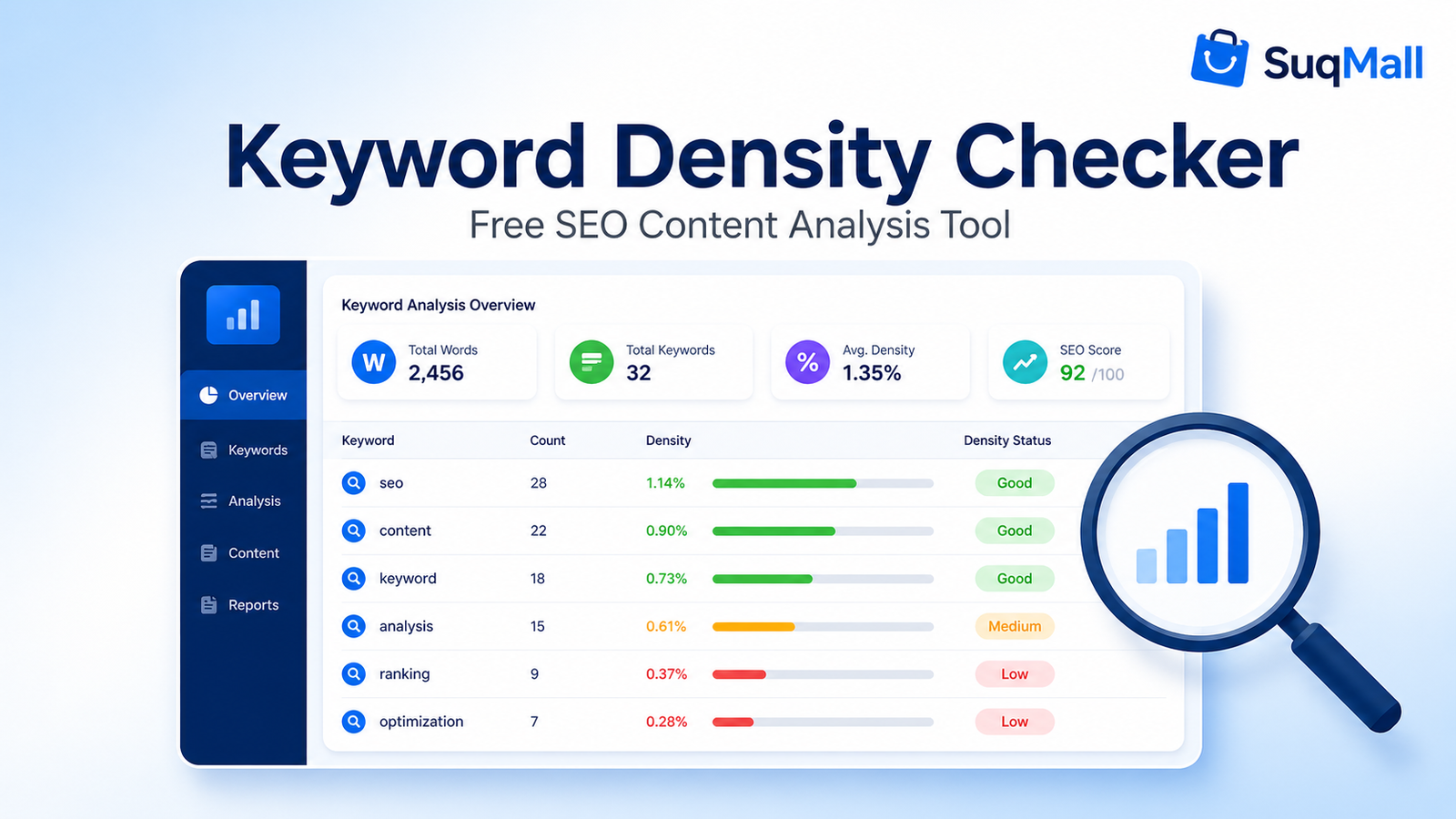
Are you tired of guessing whether your content is over-optimized or lacking the right keywords? Do you want to improve your blog posts, product descriptions, or landing pages without paying for expensive software? SuqMall’s Keyword Density Checker is the answer. This 100% free, no‑login web tool instantly analyzes your text or webpage content and gives you accurate keyword frequency, density percentages, and practical SEO recommendations. Whether you’re a beginner blogger, a seasoned SEO expert, or an e‑commerce owner, this tool helps you create perfectly balanced content that search engines love.
In this guide, I’ll walk you through everything you need to know about the SuqMall Keyword Density Checker – from its powerful features to step‑by‑step usage, real‑world examples, and expert tips. Read on to get the most out of this must‑have content optimization tool.
Why a Keyword Density Checker Matters for SEO
Keyword density – the percentage of times a keyword appears on a page compared to total words – remains a foundational on‑page SEO metric. Too little of a primary keyword, and search engines may not understand your topic. Too much, and you risk triggering keyword stuffing penalties that can hurt your rankings. A reliable keyword density tool helps you find the sweet spot, ensuring your content reads naturally while staying relevant.
SuqMall’s free checker goes beyond simple counting. It breaks down words, phrases, and even custom target keywords so you can fine‑tune every piece of text for maximum organic visibility.
Key Features of SuqMall Keyword Density Checker
Here are the standout features that make this tool indispensable for content creators:
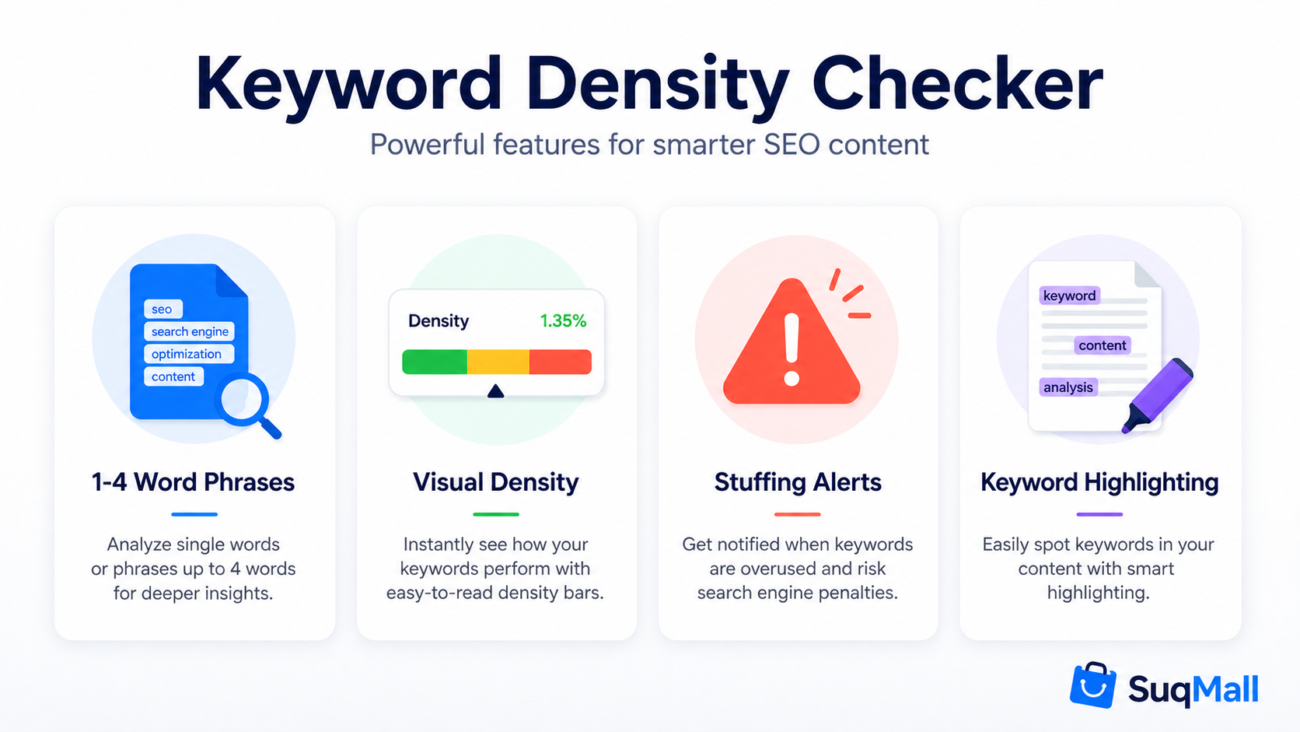
1. Text & URL Analysis
Paste your own text or enter a webpage URL. The tool fetches the page content (when possible) and analyzes it the same way. If a URL cannot be fetched, just copy and paste the text directly – you’re never left without results.
Benefit: You can analyze blog drafts before publishing or inspect competitor pages to learn from their keyword strategies.
2. Comprehensive Word & Phrase Counting
Get detailed statistics, including:
- Total word count
- Unique word count
- Character count
- Number of sentences and paragraphs
- Filtered word count (after excluding stop words and applying minimum length)
Benefit: At a glance, you understand your content’s length and diversity, which are crucial for readability and SEO.
3. One‑ to Four‑Word Phrase Analysis
The tool doesn’t stop at single words. It counts and displays two‑word, three‑word, and four‑word phrases by frequency. This is especially useful for identifying long‑tail keyword opportunities and over‑used clusters.
Benefit: Discover valuable long‑tail keyword phrases you can emphasize to rank for multiple search queries.
4. Custom Target Keywords
Enter your own list of target keywords (comma‑separated). The checker gives you exact counts and density percentages for those terms, so you can track exactly how well you’re optimizing for specific phrases.
Benefit: Perfect for campaign‑based content where you must hit precise keyword targets.
5. Stop Words Toggle & Minimum Word Length
Exclude common words like “the”, “is”, and “and” to see only meaningful keywords. You can also set a minimum word length (e.g., ignore extremely short words). Both options are adjustable.
Benefit: Focus your analysis on content‑carrying terms, not filler words, getting a clearer picture of your topical focus.
6. Visual Density Bars & Color‑Coded Status
Each keyword gets a progress‑bar style density indicator and a clear label – Low, Optimal, Elevated, or Stuffing Risk – with intuitive green, yellow, and red colors.
Benefit: Even non‑experts can instantly spot over‑optimized terms and know where to adjust.
7. Keyword Stuffing Warning System
When any keyword exceeds 6% density, the tool displays a prominent alert with the offending keywords. You’ll also get a friendly recommendation on how to improve.
Benefit: Avoid search engine penalties by catching over‑optimization before you hit publish.
8. Highlight Mode
Turn on “Highlight keywords” to visually see where keywords appear in your original text. High‑density words are marked especially, helping you quickly identify repetition.
Benefit: Quickly scan your content and see exactly which parts need rewriting.
9. Copy Results & Load Sample
Copy a full report to your clipboard for sharing or records. The “Load Sample” button instantly populates the editor with a demo text, letting you explore the tool without typing anything.
Benefit: Saves time when you want to save your analysis or test the tool’s capabilities.
10. Fully Responsive, Accessible, and Fast
Works beautifully on desktop, tablet, and mobile. Designed with proper contrast, keyboard support, and screen reader compatibility.
Benefit: Use the tool anytime, anywhere, on any device – no friction, no waiting.
How to Use the Keyword Density Checker – A Step‑by‑Step Guide
Follow these simple steps to analyze your content like a pro:
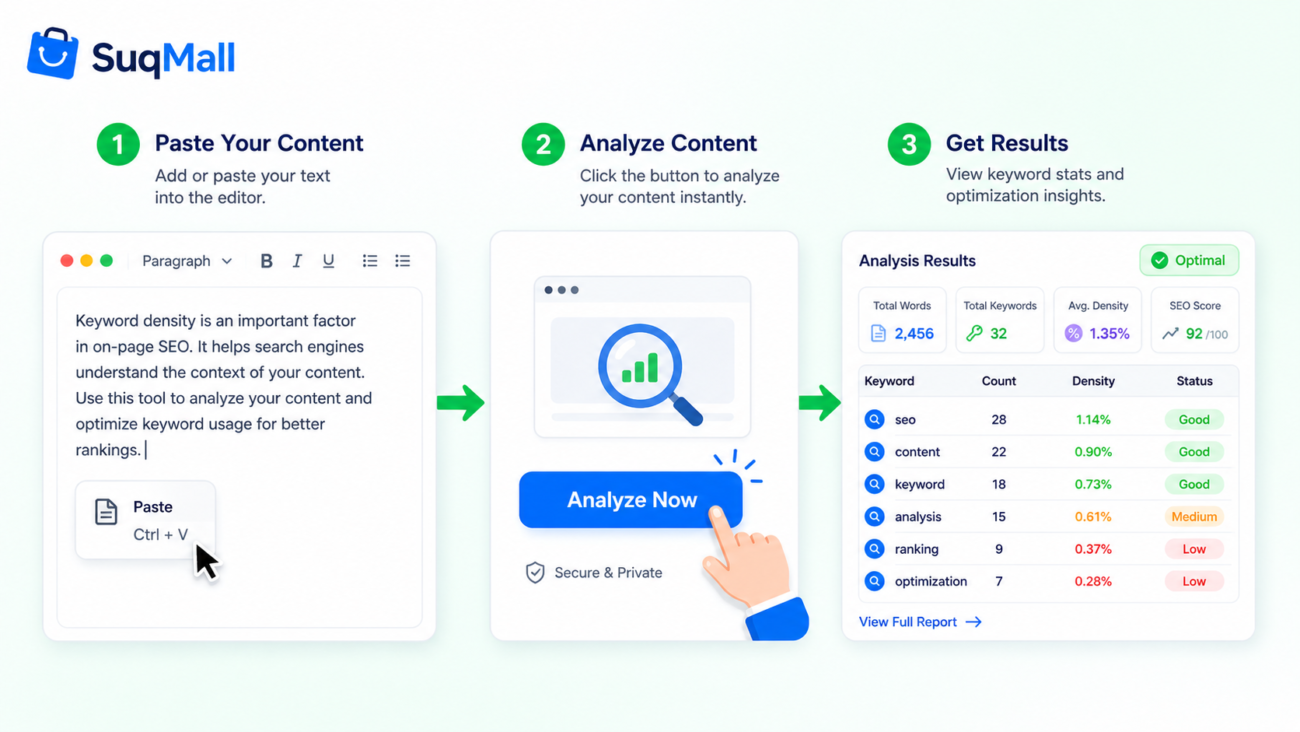
Step 1: Enter Your Content
You have two options:
- Paste text: Copy your blog post, article, or any text and paste it into the large text area.
- Fetch a URL: Type the full webpage URL and click the “Fetch URL” button. The tool will attempt to retrieve the page’s readable content. If successful, it will populate the editor automatically.
Step 2: (Optional) Set Custom Keywords
If you’re targeting specific phrases, enter them separated by commas in the “Custom target keywords” field. For example: “SEO tools, keyword analysis, content optimization”.
Step 3: Configure Your Analysis Settings
Before running the analysis, adjust:
- Exclude common stop words: Checked by default. Uncheck if you want to include them.
- Highlight keywords in text: Toggle on to visually mark keywords (useful after results are in).
- Minimum word length: Use the slider to ignore words shorter than a certain length. For keyword analysis, 2 or 3 is a good starting point.
Step 4: Click “Analyze Now”
The tool processes your text in milliseconds and scrolls down to show results. If you entered a URL and the textarea was empty, it will first try to fetch the content.
Step 5: Explore Your Results
- Summary cards: View total words, unique words, characters, sentences, paragraphs, and filtered words.
- Warnings: Check for stuffing alerts and density recommendations.
- Phrase tabs: Switch between 1‑word, 2‑word, 3‑word, and 4‑word phrases. If you added custom keywords, a dedicated “Custom Keywords” tab appears.
- Keyword table: Each row shows the keyword/phrase, count, density percentage, a visual density bar, and a status badge.
- Recommendation: Scroll down to read personalized advice based on your top keyword densities.
Step 6: Take Action
- If a keyword is Low, consider using it more naturally throughout the text.
- If it’s Optimal, you’re on the right track.
- If it’s Elevated or Stuffing Risk, rephrase sentences to reduce repetition.
- Use the highlight mode to spot over‑used words and edit directly in the textarea.
Step 7: Copy or Clear
Click “Copy Results” to save a full text report to your clipboard. Use “Clear” to reset everything and start a new analysis.
Real‑World Examples and Use Cases
Example 1: Blog Post Optimization
Imagine you’re writing a 1,200‑word blog post about “best wireless headphones 2025”. You paste your draft into the tool and set custom keywords: “wireless headphones”, “best headphones”, “2025”, “noise cancelling”. The analysis shows:
- “wireless headphones” appears 8 times (0.67%) – Low
- “best headphones” appears 4 times (0.33%) – Low
- “2025” appears 15 times (1.25%) – just under optimal
- No stuffing warnings.
You realize you need to increase “wireless headphones” to at least 1%–2% for better topical relevance. You adjust the draft, re‑analyze, and now “wireless headphones” sits at 1.8% – perfect.
Example 2: Competitor Page Analysis
You want to outrank a competitor for “vegan protein powder”. You enter their URL, the tool fetches visible text, and you discover they use the phrase “vegan protein powder” at a 4.7% density – elevated. Your own draft sits at 1.2%. Instead of blindly copying their strategy, you maintain a healthier 2.2% while also including related long‑tail phrases like “plant‑based protein powder” that the competitor missed. Result: better on‑page SEO without risking a penalty.
Example 3: E‑commerce Product Description
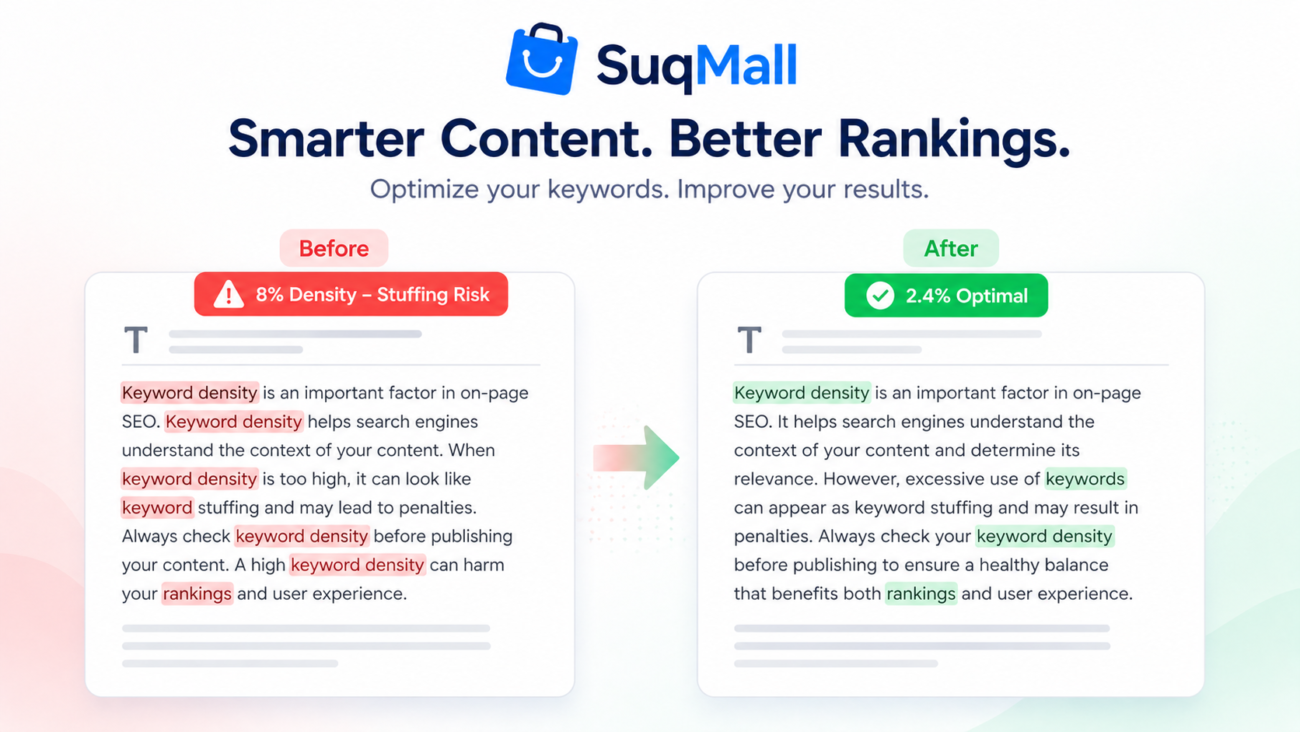
A product description says “premium leather wallet” 12 times in 150 words – a shocking 8% density. The tool flags it as “Stuffing Risk” and highlights the phrase. The seller rewrites to use natural variations like “genuine leather accessory”, “sleek wallet”, and “handcrafted billfold”. The density drops to 2.5%, reads much more naturally, and still tells search engines the product is about leather wallets.

Frequently Asked Questions (FAQ)
1. Is the SuqMall Keyword Density Checker really free?
Yes, it’s 100% free. No registration, no subscription, no login, and no usage limits. You can analyze as many texts as you need.
2. What is a good keyword density for SEO?
Most experts recommend 1% to 3% for primary keywords. Going above 5% can look unnatural, and above 6% often triggers our stuffing warning. However, always prioritize readability – if a 2.5% density reads awkwardly, lower it.
3. How accurate is the URL fetching feature?
The tool uses multiple proxy services to retrieve page content. While it works for many sites, some websites block automated fetches. If a URL cannot be fetched, just copy the page text manually – the analysis will be identical.
4. Does the tool store any of my data?
No. Everything runs inside your browser. Your text never leaves your device, ensuring complete privacy.
5. Can I analyze non‑English content?
The tool works with any text that uses spaces between words, but the stop words list is English‑specific. For other languages, uncheck “Exclude common stop words” to get an accurate count before filtering.
6. What if I don’t see my custom keywords in the results?
Custom keywords appear in a separate tab only when you have entered them before clicking Analyze. Make sure you’ve separated them with commas and checked the “Custom Keywords” tab.
7. Does the tool check for semantic keywords or LSI?
While it doesn’t automatically suggest LSI keywords, you can use the multi‑word phrase analysis to find related terms that appear naturally in your content. This helps you gauge semantic richness.
Conclusion: Try SuqMall’s Free Keyword Density Checker Today
Balancing keyword usage is the secret sauce behind SEO‑friendly, reader‑pleasing content. With SuqMall’s Keyword Density Checker, you get a powerful, easy‑to‑use companion that uncovers hidden optimization opportunities, warns against dangerous over‑stuffing, and helps you craft content that ranks and converts.
Why wait? Open the tool, paste your text, and see your keyword breakdown in seconds. No login, no fees, just actionable insights. Whether you’re a solo blogger, an agency, or a marketing team, this free resource belongs in your SEO toolkit.
Share your results – and if you find the tool helpful, spread the word. SuqMall is committed to keeping this and other professional SEO tools completely free for public use. Your feedback shapes our future updates, so don’t hesitate to reach out.
Experience the simplicity and precision of truly free content analysis. Use SuqMall’s Keyword Density Checker now and take control of your on‑page SEO like never before.