
Blog
Free Online HEIC to JPG Converter Web Tool Guide: Free Online Tool


Introduction
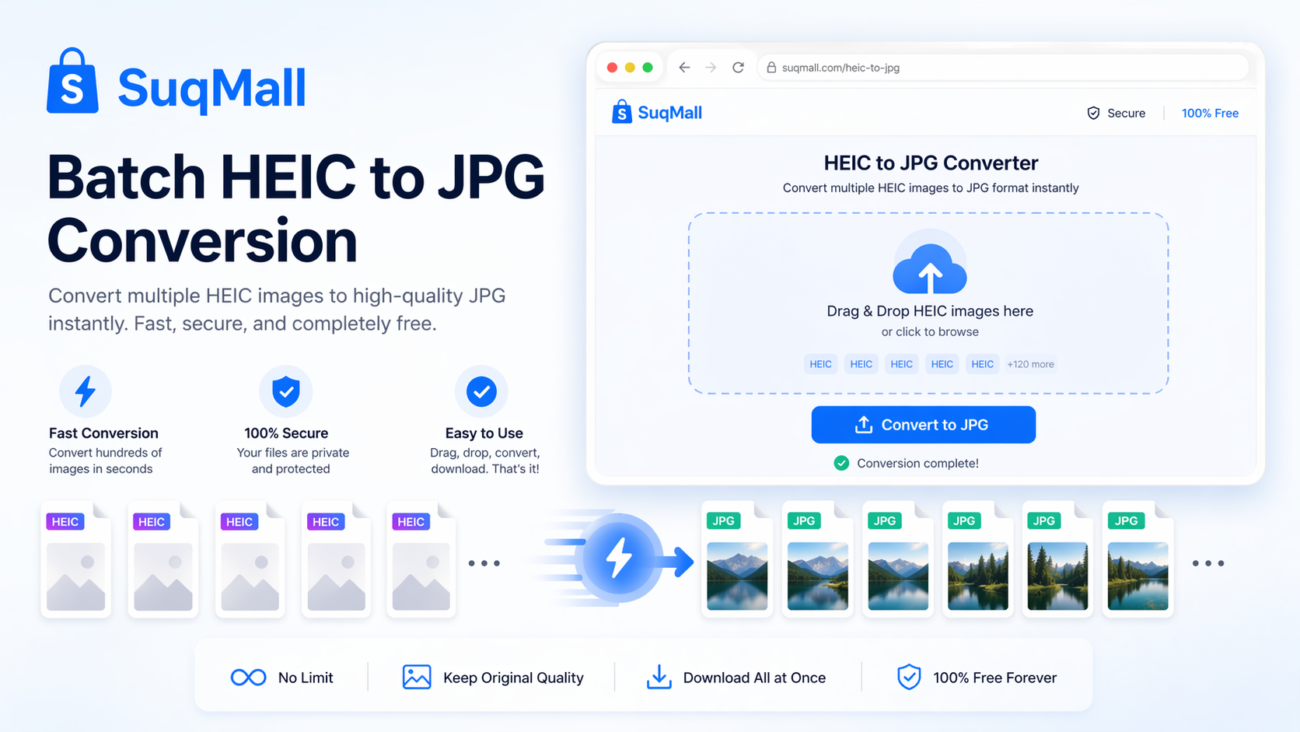
If you’ve ever tried to open a HEIC file on your Windows computer or share it on social media, you’ve likely encountered compatibility issues. HEIC (High Efficiency Image Container) is Apple’s preferred image format, offering superior compression and quality compared to traditional JPEG. However, its limited support across platforms can be frustrating.
That’s where the Free HEIC to JPG Converter from SuqMall.Net comes to the rescue! This powerful web tool allows you to convert HEIC images to universally compatible JPG format directly in your browser—completely free, secure, and private. No software installations, no file uploads, and no hidden limitations.
Features and Benefits
🔒 100% Client-Side Conversion
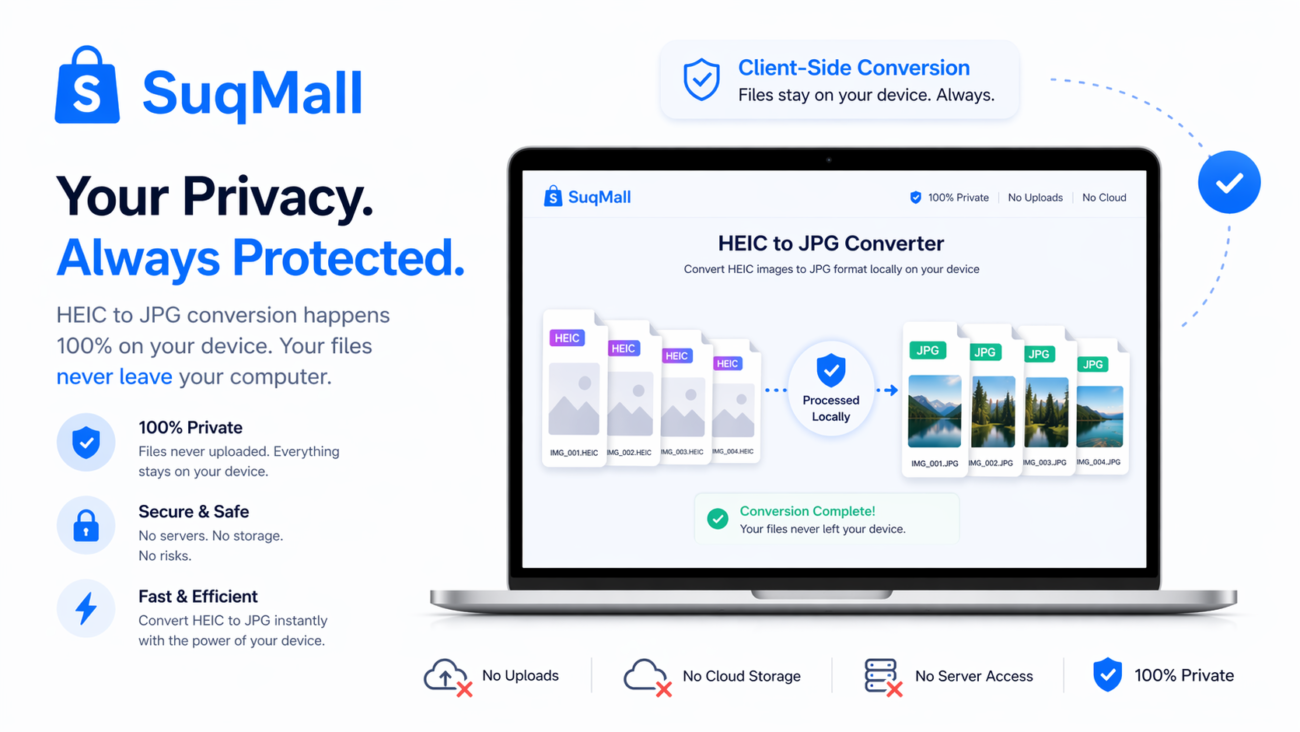
How it works: All conversion happens locally in your browser using JavaScript. Your files never leave your device.
Benefits:
- Maximum privacy and security
- No internet required after page load
- No risk of data breaches or unauthorized access
🚀 Batch Processing
How it works: Convert multiple HEIC files simultaneously with a simple drag-and-drop interface.
Benefits:
- Save time when converting entire photo albums
- Maintain organization with original filenames
- Download all converted images as a single ZIP file
⚙️ Customizable Output Settings
How it works: Adjust quality settings and choose whether to preserve EXIF data.
Benefits:
- Balance file size and image quality
- Keep valuable metadata (camera settings, location, dates)
- Optimize images for different use cases
🌐 Cross-Platform Compatibility
How it works: Works on all modern browsers and devices.
Benefits:
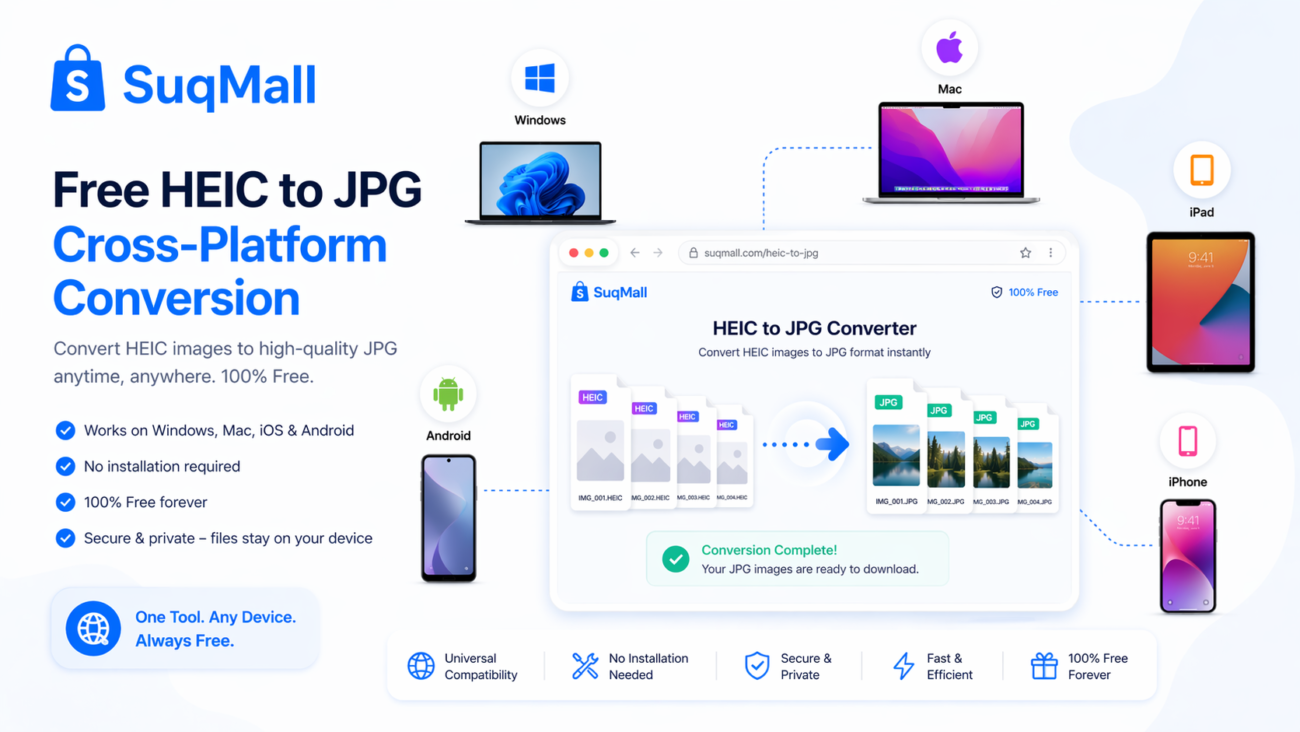
- Use on Windows, Mac, Linux, iOS, and Android
- No platform-specific limitations
- Consistent experience across all devices
💯 Completely Free
How it works: No subscriptions, watermarks, or usage limits.
Benefits:
- Convert unlimited files without restrictions
- No hidden costs or premium features
- Accessible to everyone
Step-by-Step Guide: How to Use the HEIC to JPG Converter
Step 1: Access the Tool
Navigate to the SuqMall.Net HEIC to JPG Converter using any modern web browser.
Step 2: Upload Your HEIC Files
You have three options to add your images:
- Drag and drop HEIC files directly onto the upload area
- Click “Select Files” to browse your device
- Use the file input for precise selection
Step 3: Adjust Conversion Settings
- Quality Setting: Slide between 50-100% (90% recommended for optimal balance)
- EXIF Data: Toggle on/off depending on whether you want to preserve metadata
Step 4: Convert to JPG
Click the “Convert to JPG” button and watch the real-time progress bar. The tool typically processes images in seconds.
Step 5: Download Your Files
- Individual files: Click download buttons next to each converted image
- Batch download: Use the “Download All” button to get a ZIP archive
Best Practices and Common Mistakes to Avoid
✅ Do:
- Convert in batches to save time with multiple images
- Use 90% quality for the perfect balance of size and clarity
- Keep EXIF data when you need to preserve photo information
- Check file sizes after conversion to ensure quality meets your needs
❌ Don’t:
- Close the browser tab during conversion (process will be lost)
- Convert extremely large batches on mobile devices (may strain memory)
- Forget to download your files before leaving the page
Real-World Examples and Use Cases
Case Study 1: Professional Photographer
Situation: Maria, a wedding photographer, receives HEIC images from second shooters using iPhones, but needs to edit them in Photoshop on her Windows PC.
Solution: Using the HEIC to JPG converter, she quickly processes hundreds of images while preserving EXIF data for proper editing workflow.
Case Study 2: Social Media Manager
Situation: David manages multiple client accounts but can’t upload HEIC files directly to Instagram, Facebook, or Twitter.
Solution: He converts client-provided HEIC images to JPG in batches, maintaining quality while ensuring platform compatibility.
Case Study 3: Family Photo Sharing
Situation: The Johnson family wants to share vacation photos, but grandparents using Android phones can’t open HEIC files.
Solution: They convert their iPhone photos to JPG before sharing, ensuring everyone can view and enjoy the memories.

Frequently Asked Questions
❓ Is this tool really free?
Yes! The HEIC to JPG converter is completely free with no hidden charges, watermarks, or usage limits.
❓ Do my files get uploaded to your servers?
No. All conversion happens locally in your browser. Your files never leave your device, ensuring complete privacy.
❓ What’s the maximum file size I can convert?
There’s no strict limit, but very large files (100+ MB) may take longer to process depending on your device’s capabilities.
❓ Does it work on mobile devices?
Absolutely! The tool is fully responsive and works perfectly on smartphones and tablets.
❓ Can I convert multiple files at once?
Yes, batch conversion is fully supported. You can convert dozens of HEIC files simultaneously.
❓ What happens to the quality during conversion?
The tool maintains excellent image quality. You can adjust the quality setting from 50-100% based on your needs.
❓ Will my converted files have watermarks?
No watermarks ever. Your converted JPG files are clean and ready to use.
Conclusion and Call to Action
The HEIC to JPG Converter from SuqMall.Net solves a common problem for millions of iPhone and iPad users who need to share images across different platforms. With its privacy-focused approach, batch processing capabilities, and completely free access, it stands out as the best solution for HEIC conversion needs.
Ready to convert your HEIC files?
[Try the Free HEIC to JPG Converter Now]() and experience the simplicity of browser-based image conversion. Share your experience in the comments below or spread the word to help others overcome HEIC compatibility issues!
Related Posts
Free Online HEIC To PDF Converter Web Tool Guide: The Ultimate Free Solution for iPhone Users

Free Online PDF To HEIC Converter Web Tool Guide: Free, Unlimited & 100% Secure
Free Online JPG To WEBP Converter Web Tool Guide: Boost Your Website Performance
Free Online JPEG To HEIC Converter Web Tool Guide: Save Space Without Losing Quality
Free Online HEIC To JPEG Converter Web Tool Guide: Free Online Tool
Free Online JPG To HEIC Converter Web Tool Guide: Save Space Without Losing Quality
Free Online JFIF To PNG Converter Web Tool Guide: Why This Free Online Tool Is a Game-Changer
One thought on “Free Online HEIC to JPG Converter Web Tool Guide: Free Online Tool”
Comments are closed.
Sabongbet, eh? Finally, a place where I can actually place my bets on those crazy rooster fights. Been looking for a reliable site, and this one seems promising. Let’s see if they live up to the hype though! Check it out for yourself sabongbet