Blog
Free Online PDF To Excel Converter Web Tool Guide: No Limits, 100% Private


Introduction
In today’s data-driven world, we often find ourselves trapped between two universal file formats: PDFs for sharing and Excel for analysis. What happens when you need to move data from a static PDF report into an editable Excel spreadsheet? Until now, this meant tedious manual copying, expensive software, or questionable online tools that compromise your data privacy.
That’s why we developed our 100% free PDF to Excel Converter – a revolutionary web tool that breaks down barriers between these essential formats. This isn’t just another file converter; it’s a powerful, privacy-focused solution that works entirely in your browser, ensuring your sensitive data never leaves your computer.
Whether you’re a financial analyst working with quarterly reports, a researcher compiling data, or a student organizing information, this tool eliminates the friction between PDF content and Excel functionality. Best of all? There are absolutely no file size limits or hidden costs.
Key Features and Benefits
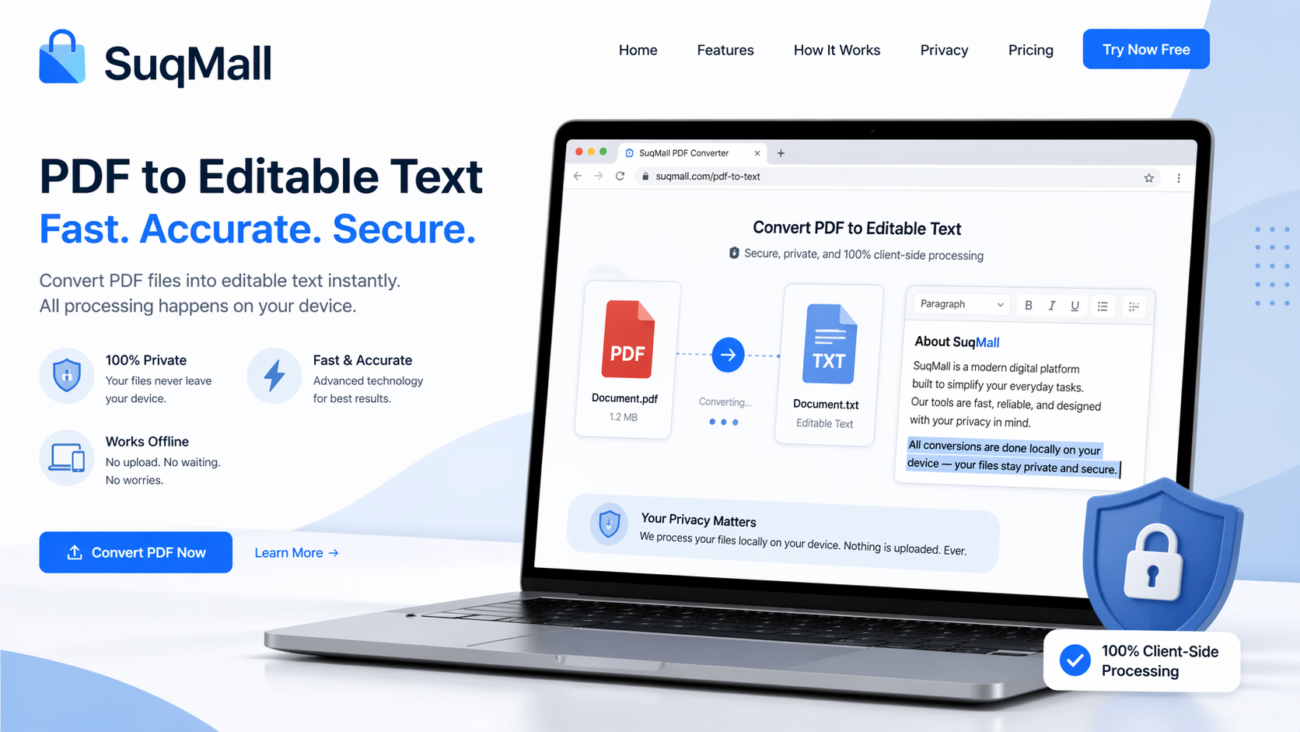
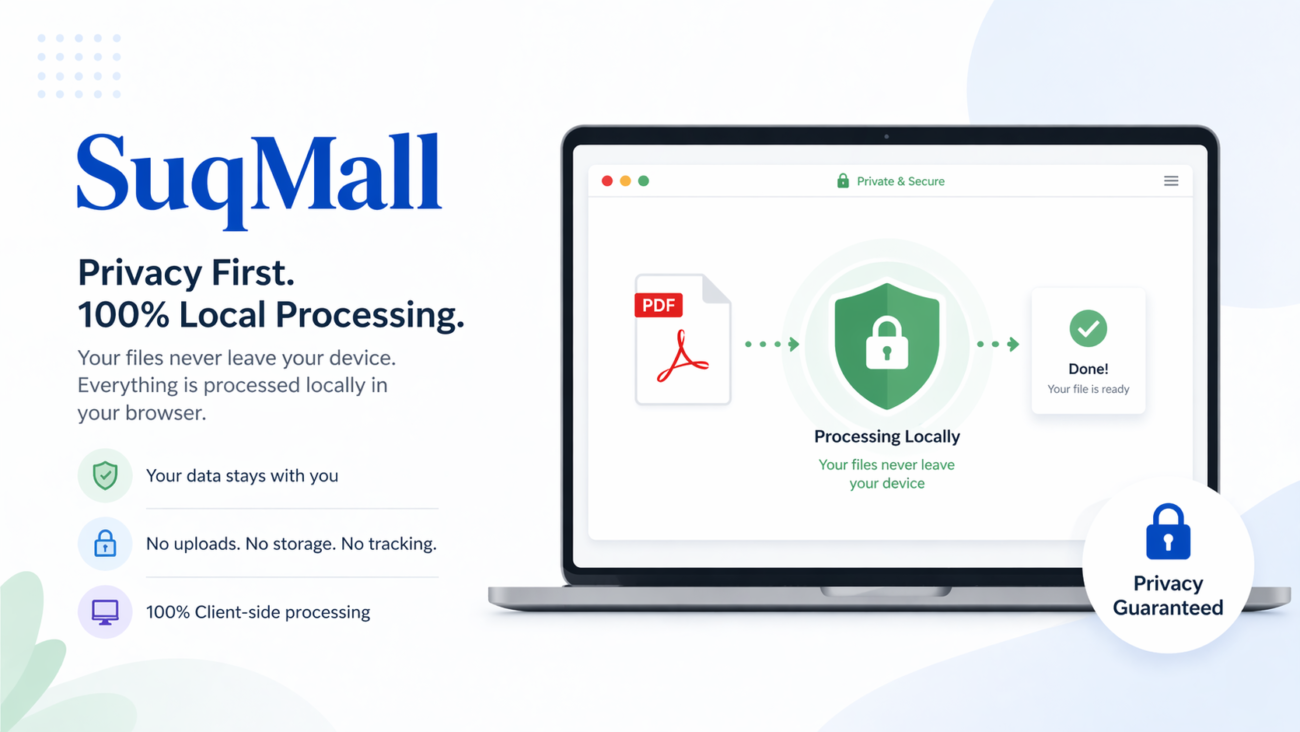
🔒 100% Client-Side Processing
What it is: All conversion happens directly in your web browser – no files are uploaded to any server.
Why it matters: Your sensitive financial reports, personal data, or confidential business documents remain completely private. Unlike other converters that store your files on their servers, our tool ensures maximum security.
📊 Accurate Table Extraction
What it is: Advanced algorithms detect and extract tables from multi-page PDFs with precision.
Why it matters: Perfect for converting financial statements, research data, or inventory lists while maintaining the original structure and formatting.
🚫 No File Size Limits
What it is: Convert PDFs of any size without restrictions – from single-page documents to hundred-page reports.
Why it matters: Other tools often impose frustrating limits that force you to split large files or upgrade to paid plans.
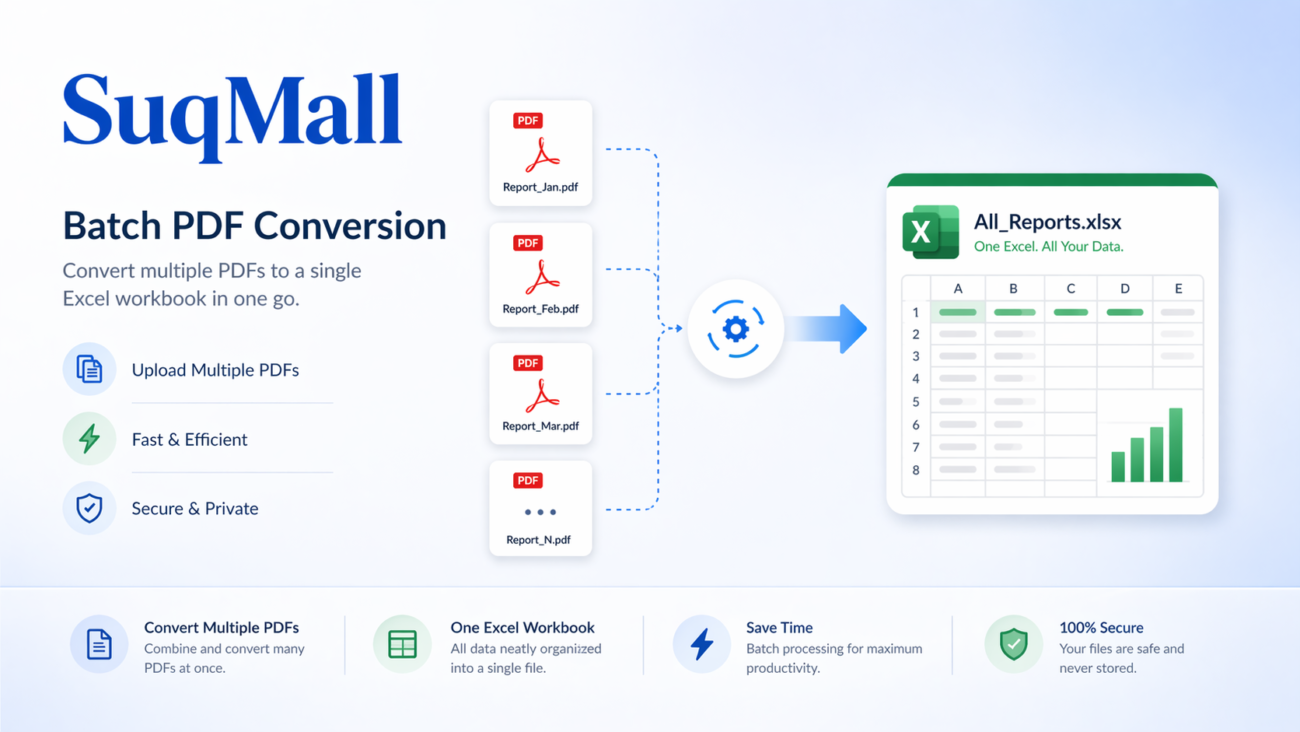
⚡ Multiple PDF Batch Processing
What it is: Upload and convert several PDF files simultaneously into a single Excel workbook.
Why it matters: Ideal for monthly reports, research papers, or project documentation where you need to consolidate data from multiple sources.
👁️ Data Preview and Editing
What it is: Review extracted tables before downloading and make quick edits if needed.
Why it matters: Catch extraction errors early and ensure data accuracy without multiple conversion attempts.
🌙 Dark Mode Support
What it is: Toggle between light and dark themes for comfortable viewing in any lighting condition.
Why it matters: Reduces eye strain during extended work sessions and provides a modern user experience.
How to Use the PDF to Excel Converter: Step-by-Step Guide
Step 1: Access the Tool
Simply open the HTML file in any modern web browser (Chrome, Firefox, Edge, or Safari). No installation or registration required.
Step 2: Upload Your PDF Files
You have three options for uploading:
- Drag and drop PDF files directly into the upload area
- Click “Browse Files” to select files from your computer
- Mobile users can tap the upload area to access device storage
Step 3: Configure Conversion Settings
Customize your output with these options:
- Output filename: Choose a meaningful name for your Excel file
- Sheet naming: Organize by page numbers, original filenames, or combine all tables
- Multiple PDF handling: Keep files separate or merge into single sheets
Step 4: Convert and Preview
Click “Convert to Excel” and watch the progress indicator. Once complete, review the extracted data in the preview table. Use the “Edit Table” feature to make quick corrections if needed.
Step 5: Download Your Excel File
Click “Download Excel File” to save your converted data. The file will be ready for immediate use in Microsoft Excel, Google Sheets, or any spreadsheet application.
Best Practices for Optimal Results
✅ DO:
- Use PDFs with clearly defined table borders for best extraction accuracy
- Check the preview before downloading to verify data integrity
- Use descriptive filenames to easily identify converted files later
- Take advantage of the editing feature for quick corrections
❌ DON’T:
- Upload scanned PDFs without OCR – text-based PDFs work best
- Forget to preview your data before finalizing the conversion
- Close the browser window during conversion of large files
Real-World Use Cases and Examples
Case Study 1: Financial Analyst Converting Quarterly Reports
Sarah, a financial analyst, receives monthly performance reports as PDFs. Previously, she spent hours manually transferring data to Excel for analysis. Now, she converts 50-page quarterly reports in minutes, with accurate table preservation, saving 10+ hours monthly.
Case Study 2: Academic Researcher Compiling Data
Dr. Chen needed to extract statistical data from 20 research paper PDFs for a meta-analysis. Using the batch processing feature, he converted all files into a single Excel workbook with separate sheets, streamlining his research process significantly.
Case Study 3: Small Business Owner Managing Inventory
Mike runs a small retail business and receives inventory lists as PDFs from suppliers. The converter helps him quickly transform these into editable Excel sheets for stock management and reordering calculations.

Frequently Asked Questions
❓ Is this converter really free with no hidden costs?
Yes! Our PDF to Excel Converter is 100% free with no limitations, subscriptions, or hidden fees. We believe powerful tools should be accessible to everyone.
❓ How does client-side processing protect my privacy?
Your data never leaves your computer. Unlike online converters that upload your files to their servers, our tool processes everything locally in your browser. This means financial reports, personal documents, and sensitive data remain completely secure.
❓ What types of PDFs work best with the converter?
Text-based PDFs with clear table structures yield the best results. Scanned PDFs may require OCR (Optical Character Recognition) software first to convert images to selectable text.
❓ Can I convert PDFs with multiple tables across pages?
Absolutely! The tool automatically detects tables across multiple pages and can organize them by page number or combine them based on your preferences.
❓ What if the extracted data needs corrections?
Use the built-in preview and edit feature to make adjustments before downloading. This saves time compared to editing after conversion.
❓ Is there a limit to how many PDFs I can convert at once?
No limits! Convert single files or batch process multiple PDFs simultaneously. The tool handles everything efficiently in your browser.
❓ What browsers are supported?
All modern browsers including Chrome, Firefox, Edge, and Safari. The tool uses standard web technologies for broad compatibility.
Conclusion: Transform Your PDF Workflow Today
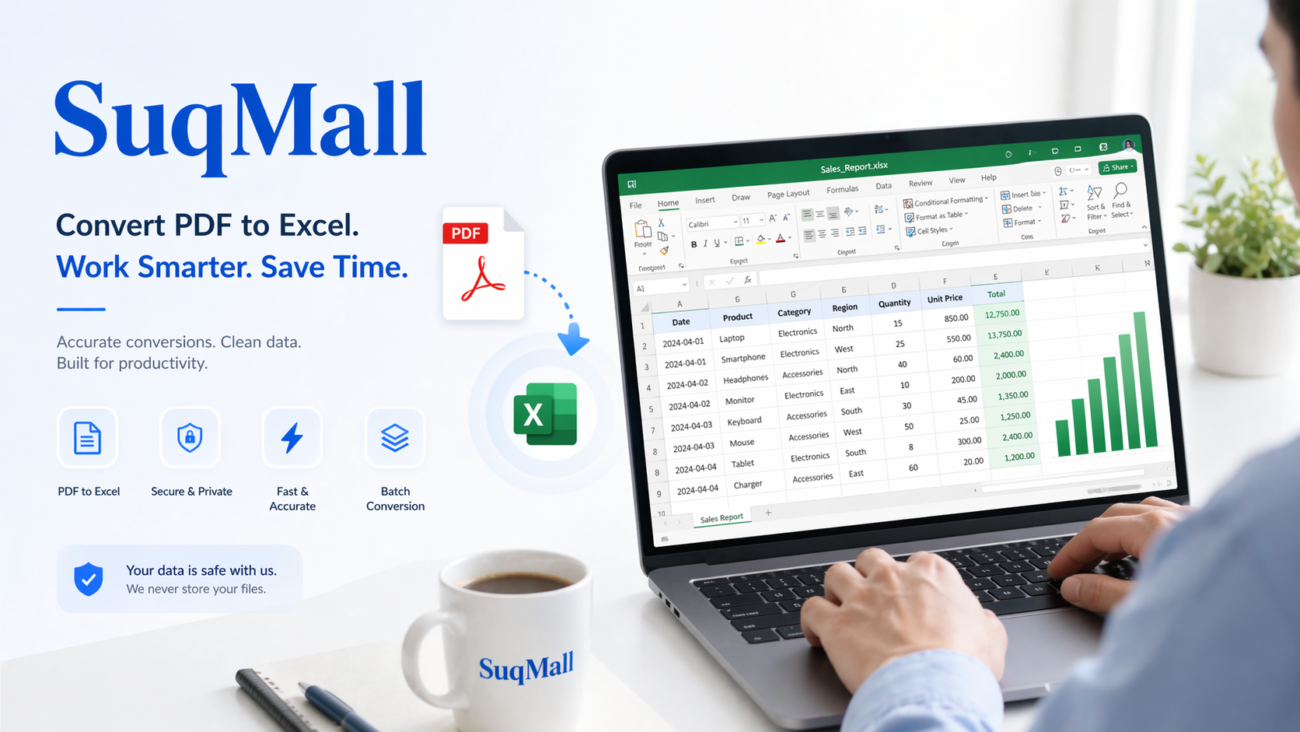
Our free PDF to Excel Converter represents a fundamental shift in how we handle document conversion. By eliminating file size restrictions, ensuring complete privacy through client-side processing, and providing powerful editing features, we’ve created a tool that genuinely serves user needs rather than creating new limitations.
The ability to quickly transform static PDF data into actionable Excel spreadsheets unlocks productivity gains across industries – from finance and research to education and small business management. Best of all, you can start using it immediately without any barriers.
Ready to experience the freedom of unlimited, private PDF to Excel conversion? [Use our converter now] and join thousands of users who have streamlined their document workflow. We’d love to hear about your experience – share your success stories and feedback to help us continue improving this tool for everyone.